

Location Restrictions
Control where on your site the form can appear
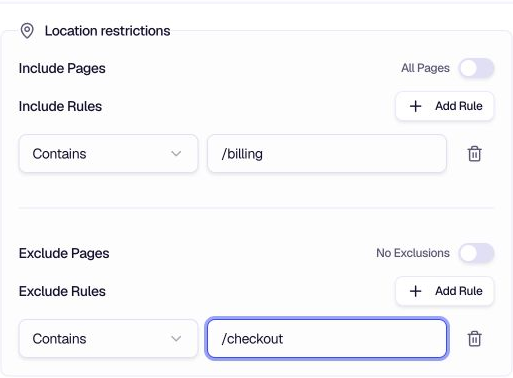
Location Restrictions control where on your site the form can appear. Use Include rules to specify pages where the form should show, and Exclude rules to hide it on specific pages—even if they match an include rule.
When to use
- Site-wide feedback — Use "All Pages" to show the form everywhere, then exclude specific pages (e.g. checkout, login).
- Targeted pages — Use Include rules to show only on support pages, feature pages, or post-purchase flows.
- Avoid sensitive areas — Exclude login, payment, or admin pages where a feedback form would be inappropriate.
- Refine Page Visit Launch — Combine with Page Visit Launch for precise control.
Configuration
All Pages — Toggle on to show the form on every page. When off, you must add Include rules to specify where it appears.
Include Rules — When "All Pages" is off, add rules to specify where the form should appear. Choose a condition (e.g. Contains, Starts with) and enter a URL or pattern. The form appears on pages matching any rule.
No Exclusions — Toggle on to allow the form on all included pages. When off, Exclude rules apply.
Exclude Rules — When "No Exclusions" is off, add rules so the form does not appear on certain pages—even if they match an Include rule. Exclude rules take precedence.
Matching conditions
The same URL matching options as Page Visit Launch are available: Equals, Starts with, Contains, Pattern match (regex), and relative path variants.
Tips
- Exclude checkout and auth — Avoid showing feedback forms on payment, login, or signup pages.
- Use relative paths — Keeps rules portable across staging and production.
- Order matters for clarity — Exclude rules override Include rules; list exclusions for pages you want to explicitly block.
- Test edge cases — Verify the form appears (or doesn't) on key URLs before going live.
Related
- Page Visit Launch — Trigger on specific page visits
- Targeting — Control who sees the form
Was this page helpful?