

In-App FeedbackTriggersAutomatic Trigger
Automatic Trigger
Show your feedback form when launch rules match—no showForm() call required
The Automatic Trigger shows your feedback form when your launch rules match—no showForm() call required. Enable it, pick a launch type, and the form appears when your conditions are met.
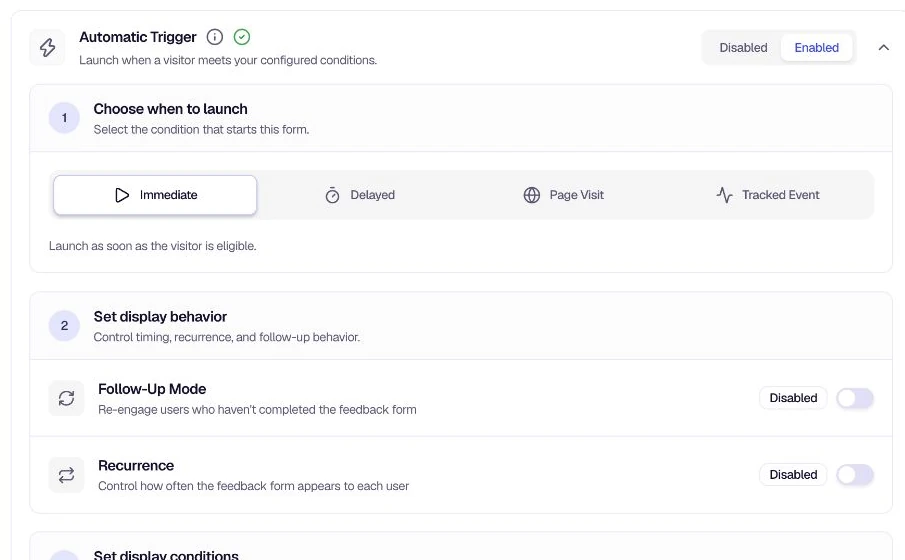
What is the Automatic Trigger?
The Automatic Trigger is one of two trigger types under Distribution → In-App → Triggers. Unlike the Manual Trigger, which requires you to call showForm() in code, the Automatic Trigger displays your form when launch rules match—you configure timing and conditions in the dashboard, and the SDK handles display. You choose when and where the form appears, and the system handles the rest.
Choose when to launch
| Launch Type | Icon | Description |
|---|---|---|
| Immediate | ▶ | Shows the form right away when the trigger condition is met. |
| Delayed | ⏱ | Waits a set amount of time after a user action before showing the form. |
| Page Visit | 🌐 | Triggers when the user visits a page matching your URL rules. |
| Tracked Event | 📈 | Triggers when a specific event (e.g. purchase, form submit) occurs. |
Additional settings
These options refine how often and where the form appears:
- Recurrence Settings — Control how often the form appears to each user—so you don't over-survey them.
- Follow-Up Mode — Re-engage users who haven't completed the form.
- On-Page Delay — Add a delay in seconds after the launch condition is met.
- Location Restrictions — Control where on your site the form can appear.
How to enable
- Go to Distribution → In-App → Triggers and expand Automatic Trigger.
- Toggle the switch to Enabled.
- Under Choose when to launch, select Immediate, Delayed, Page Visit, or Tracked Event.
- Configure any additional settings (recurrence, follow-up, delay, location) as needed.
Quick workflow
- Enable the Automatic Trigger.
- Select a launch type (Immediate, Delayed, Page Visit, or Tracked Event).
- Configure the launch type settings (e.g. delay time, URL rules, event name).
- Optionally add recurrence, follow-up, on-page delay, or location restrictions.
- Save your changes.
Related
- Manual Trigger — Show the form on demand via code
- Targeting — Control who sees your feedback forms
Was this page helpful?