

In-App FeedbackTargeting
Targeting Overview
Control who can access and submit your feedback forms
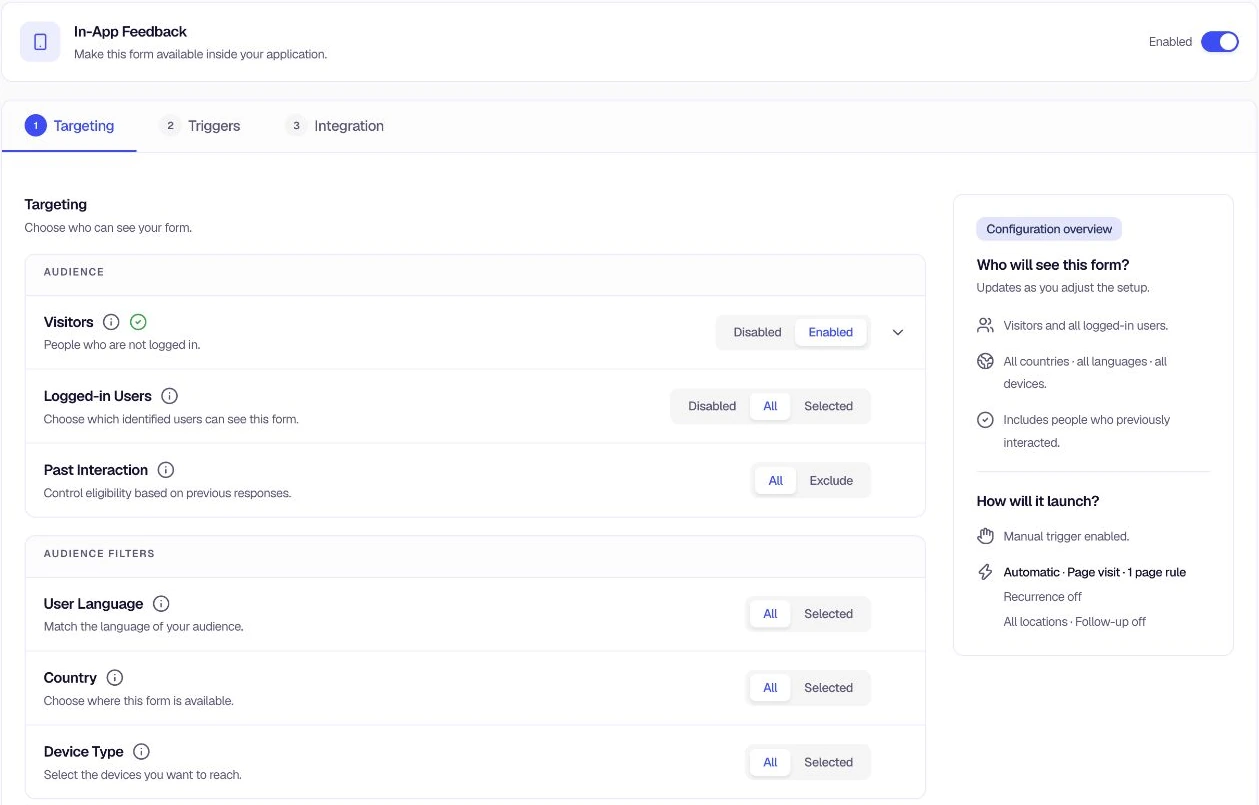
Targeting under Distribution → In-App lets you decide exactly who sees your feedback form. Think of it as your audience control center—you get to choose whether your form reaches everyone or just the right people, whether they're browsing anonymously or logged in, and whether they're on mobile, desktop, or a specific country. Getting this right means better feedback quality and a smoother experience for your users.
Why targeting matters
Targeting helps you:
- Reach the right people — Show feedback forms to users who are most likely to give useful input (e.g., beta testers, specific segments, or new visitors).
- Avoid feedback fatigue — Exclude users who already saw or responded to similar forms so you don't overwhelm them.
- Match context — Target by language, country, or device so feedback is relevant to each user's environment.
- Improve response quality — Focus on the audience that matters for each campaign instead of showing forms to everyone.
Distribution areas
The Distribution area has three sections:
- In-App Feedback — Forms shown inside your app or website to visitors and logged-in users.
- Link & Email — Shareable links you can send through external channels.
- Advanced Options — Availability, response, and collection settings scoped to the applicable distribution method.
You can enable one, both, or neither, depending on how you want to collect feedback.
Quick workflow summary
- Open your feedback form and go to Distribution.
- Decide how you want to distribute:
- Link & Email — Create links for external sharing.
- In-App — Enable In-App Feedback and configure Visitors and/or Logged-in Users.
- For Logged-in Users, choose All or Selected (and pick segments if Selected).
- Optionally refine with Past Interaction, User Language, Country, and Device Type.
- Fix any validation messages (e.g., "At least one feedback must be selected") by completing the required selections.
- Save your changes. Your form will now appear only to the users you've targeted.
Was this page helpful?