

In-App FeedbackTriggersAutomatic Trigger
Recurrence Settings
Control how often the form appears to each user
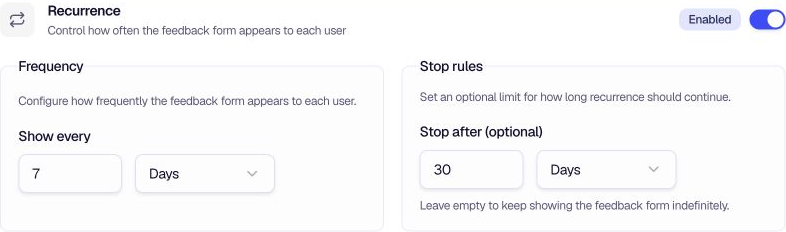
Recurrence Settings control how often the form can appear to each user. Set a required Show every interval and, if needed, an optional Stop after duration.
When to use
- Reduce survey fatigue — Show the form at most once per week (or your chosen interval).
- Time-bound campaigns — Use Stop After to stop showing the form after a set period (e.g. 30 days).
- Ongoing feedback — Leave Stop After empty to keep collecting feedback indefinitely at the set interval.
- Post-launch feedback — Show the form every few days for a limited time after a release.
Configuration
Show every — Enter a number greater than 0 and choose Minutes, Hours, Days, Weeks, Months, or Years. The form will not appear to that user again until the interval has passed.
Stop after (optional) — Enter a number and choose a unit to limit how long recurrence continues. Leave both fields empty to keep showing the form indefinitely at the selected interval.
Tips
- Balance frequency and coverage — Shorter intervals reach users more often but can feel intrusive. Longer intervals collect feedback more gradually.
- Combine with Follow-Up Mode — Use Follow-Up Mode to re-engage users who dismissed or partially completed the form, while Recurrence controls the overall cadence.
- Match your product cycle — If users engage weekly, a 7-day interval often works well. For daily users, consider 3–5 days.
Related
- Follow-Up Mode — Re-engage users who haven't completed the form
- Throttling — Limit views and responses globally or per user
Was this page helpful?