

Tracked Event Launch
Show the form when users perform specific actions
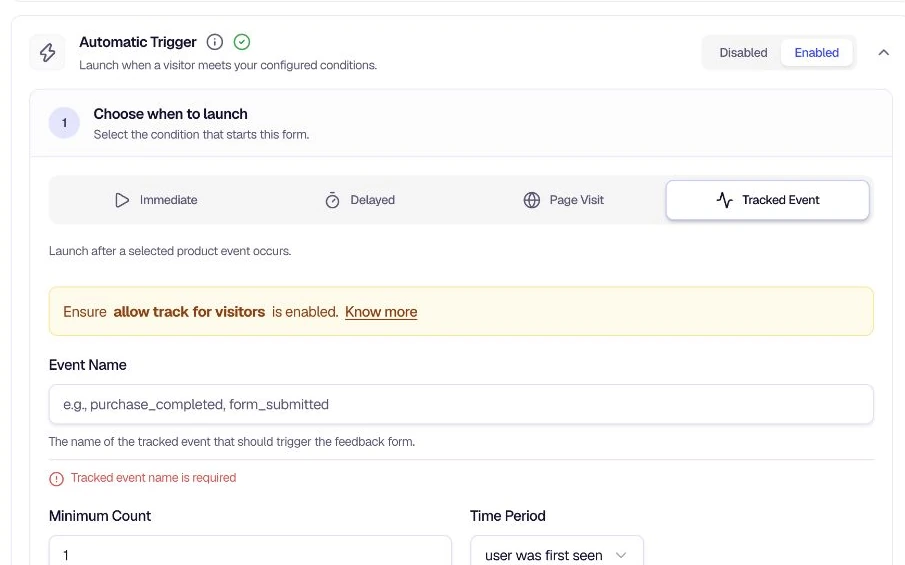
Tracked Event Launch shows the form when users perform specific actions—like completing a purchase, submitting a form, or reaching a milestone. You define the event name in your app, and the form appears when that event occurs (optionally after a minimum count within a time period).
When to use
- Post-purchase feedback — Trigger when
purchase_completedor similar events fire. - Form submission follow-up — Show the form after a user submits a contact or signup form.
- Milestone feedback — Collect feedback when users reach a key milestone (e.g. first project created, 10th task completed).
- Feature adoption — Trigger when users complete an onboarding step or use a new feature.
Prerequisites
Allow track for visitors — Enable this in your project settings so that events from anonymous visitors can trigger the form. If you only need logged-in user events, you can leave this disabled.
Configuration
Event Name — The event identifier you send from your app (e.g. purchase_completed, form_submitted). Must match exactly the event name used in your tracking code.
Minimum Count — How many times the event must occur before the form shows. Default is 1 (form shows on first occurrence).
Time Period — The window in which the minimum count must be met. For example, "user was first seen" or a custom time range.
Tips
- Name events consistently — Use clear, lowercase names with underscores (e.g.
checkout_completed,trial_started). - Avoid over-triggering — Use Minimum Count > 1 for events that can fire frequently (e.g. page views, clicks).
- Document your events — Keep a list of event names and when they fire so your team can configure triggers correctly.
- Test before launch — Send test events and verify the form appears as expected.
Related
- Page Visit Launch — Trigger on page visits
- Recurrence Settings — Limit how often the form appears
Was this page helpful?