

In-App Feedback Overview
Target visitors and logged-in users for in-app feedback forms
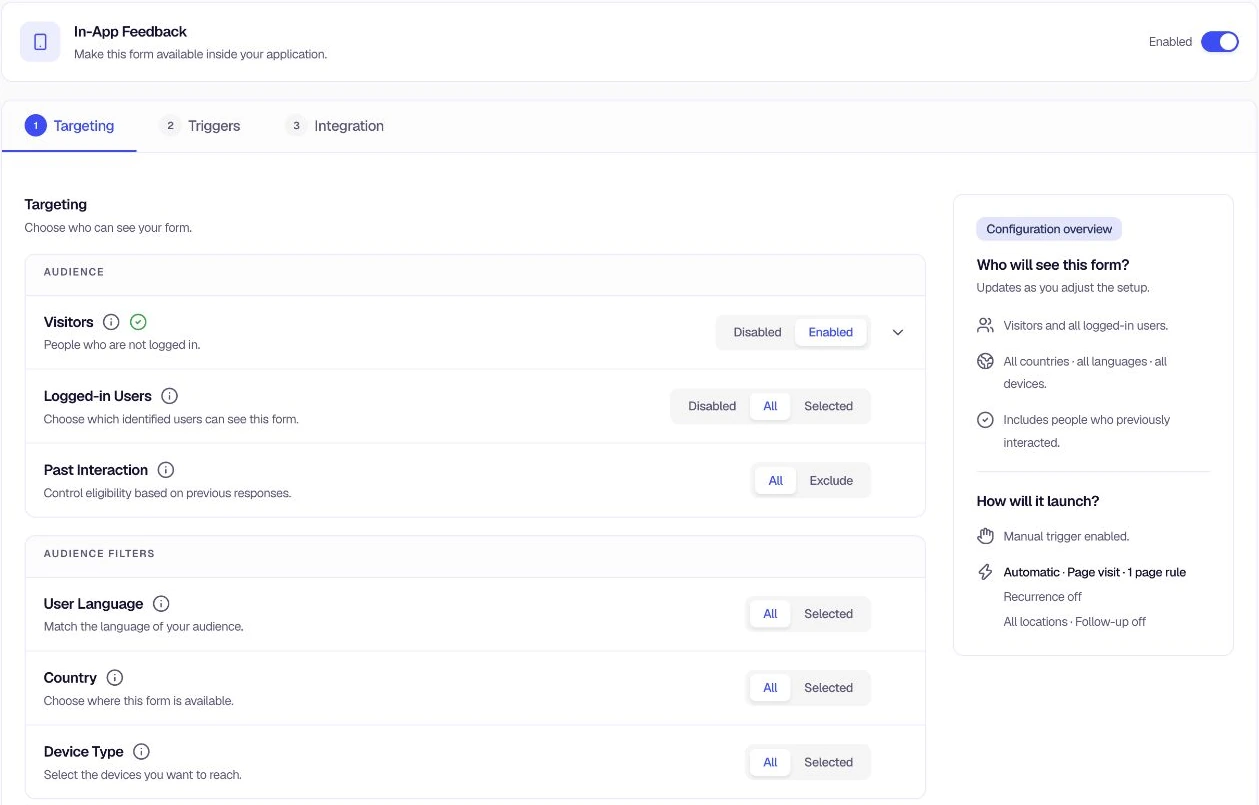
In-App Feedback controls who sees the form when they're using your app or website. You can target visitors (anonymous users) and logged-in users separately, then refine with language, country, device type, and past interaction.
What is In-App Feedback?
In-App Feedback is configured under Distribution → In-App. Unlike shareable links under Link & Email, In-App Feedback displays forms directly inside your application or website. Users encounter the form as they browse—whether they're anonymous visitors or logged-in users—and you control exactly who sees it.
The setup is organized into three steps: Targeting, Triggers, and Integration. A Configuration overview beside the setup updates as you make changes and summarizes both who will see the form and how it will launch.
Core targeting options
| Feature | What it controls |
|---|---|
| Visitors | Whether anonymous (non-logged-in) users see the form |
| Logged-in Users | Whether authenticated users see the form, and which segments to include or exclude |
Advanced targeting criteria
These options apply to both Visitors and Logged-in Users and let you narrow down the audience further:
- Past Interaction — Exclude users who already saw or responded to specific feedback forms
- User Language — Target by browser or device language
- Country — Target by geographic location
- Device Type — Target by device (desktop, mobile, tablet, native apps)
Quick workflow
- Open your feedback form and go to Distribution → In-App → Targeting.
- Enable In-App Feedback and configure Visitors and/or Logged-in Users.
- For Logged-in Users, choose All or Selected (and pick segments if Selected).
- Optionally refine with Past Interaction, User Language, Country, and Device Type.
- Fix any validation messages by completing required selections.
- Save your changes.
Tips for better targeting
- Start broad, then narrow — Begin with All for Visitors or Logged-in Users, then add filters (language, country, device) if you need more precision.
- Use Past Interaction to reduce fatigue — Exclude users who already responded to similar forms so you don't ask the same people repeatedly.
- Combine criteria — You can use multiple filters together (e.g., English-speaking users in the US on mobile) for highly specific campaigns.
- Check validation messages — Red warning icons and messages indicate incomplete settings. Complete the required selections to clear them.
Was this page helpful?