

In-App FeedbackTargetingIn-App Feedback
User Language
Target users by browser or device language
User Language lets you target users based on their browser or device language. Show the form only to users whose language matches your form content, or run multilingual campaigns by targeting specific languages.
When to use
- All — When your form is language-agnostic or you're using automatic translation. Use for simple feedback that doesn't depend on language.
- Selected — When you want to match form language to user language, run language-specific campaigns, or ensure users see content in their preferred language.
Options
| Option | Behavior |
|---|---|
| All | Show the form to users regardless of language. |
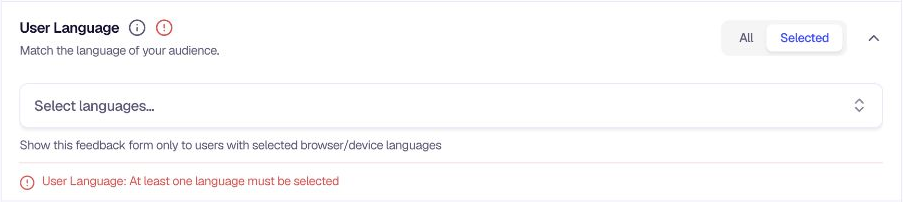
| Selected | Show the form only to users whose browser/device language matches one of the languages you select. |
Configuration
- Go to Distribution → In-App → Targeting.
- Locate User Language under the advanced targeting criteria.
- Choose All or Selected.
- If Selected, use the Select languages... dropdown to pick languages. Selected languages appear as tags that you can remove with the X icon.
- If Selected is chosen, you must select at least one language to clear validation.
Tips
- Match form language — If your form is in English only, consider targeting English-speaking users to avoid confusion.
- Localized campaigns — Run separate forms for different languages and target each to its corresponding user language.
- Browser vs. app — Language is detected from the browser (web) or device (native) settings.
Related
- Country — Target by geographic location
- Device Type — Target by device
Was this page helpful?