

From Scratch
Create feedback forms from scratch with full control. Add questions, configure screens, and build custom flows.
Start blank lets you build a feedback form from an empty canvas with complete control over every question, page, and flow. Open Forms, click New Form, then choose Start blank to design exactly what you need.
Why Use From Scratch?
- Full control: Design every question, page break, and screen from scratch. No predefined structure to work around.
- Custom use cases: Ideal when your feedback needs don't match common templates, such as unique surveys, internal tools, or highly specific flows.
- Precise wording: Write your own questions and options without adapting someone else's copy.
- Flexible structure: Add as many pages and questions as you need, in the order that makes sense for your workflow.
- No dependencies: No need to browse templates or describe your intent to AI. Start building immediately.
Accessing the Form Builder
- Open Forms and click New Form.
- Click Start blank in the creation dialog.
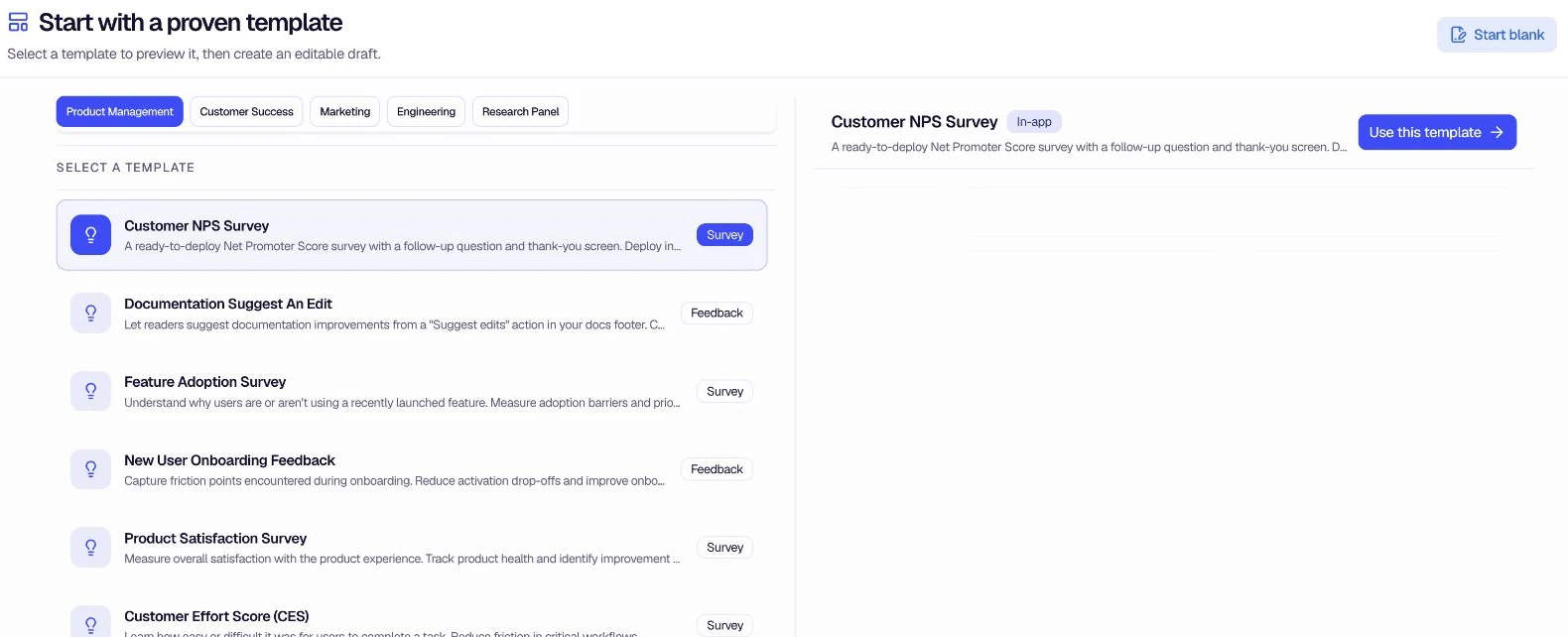
- In the dialog that opens, enter a title and optional description, then click Create Form.
- encatch creates a new draft form and opens the Form Builder with an empty form ready for you to build.
Step-by-Step: Building Your Form
Step 1: Review the Form Name
The title and description you entered when creating the form appear in the Form Builder header. Click the form name to open the edit dialog and update them at any time.
Step 2: Configure Welcome Screen, End Screen, and Other Fields
Use the configuration blocks to set up the structure of your form:
- Welcome Screen: Enable this to show an introductory screen before questions. Configure the message, button text, and styling.
- End Screen: Enable this to show a thank-you message after submission. You can add a redirect to your app store, a third-party link, or a custom message.
- Other Fields Configuration: Enable this to configure display options such as question numbers, page titles, and button labels.
Each block has an edit icon. Click it to configure the details.
Step 3: Add Questions
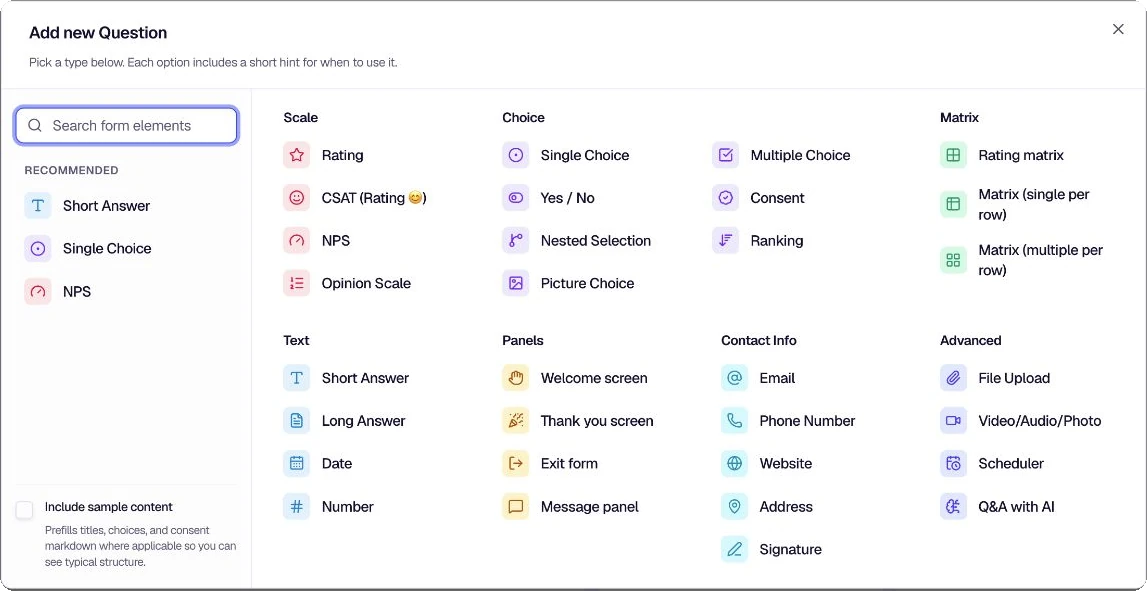
- Click + Add Question to add a new question to your form.
- Search or browse the grouped question types, then choose the element you need.
- Enter the question text and configure options (required/optional, validation, etc.).
- Use the drag handle (vertical ellipsis) to reorder questions within a page or move them between pages.
- Use the pencil icon to edit a question and the trash icon to delete it.
Step 4: Organize into Pages
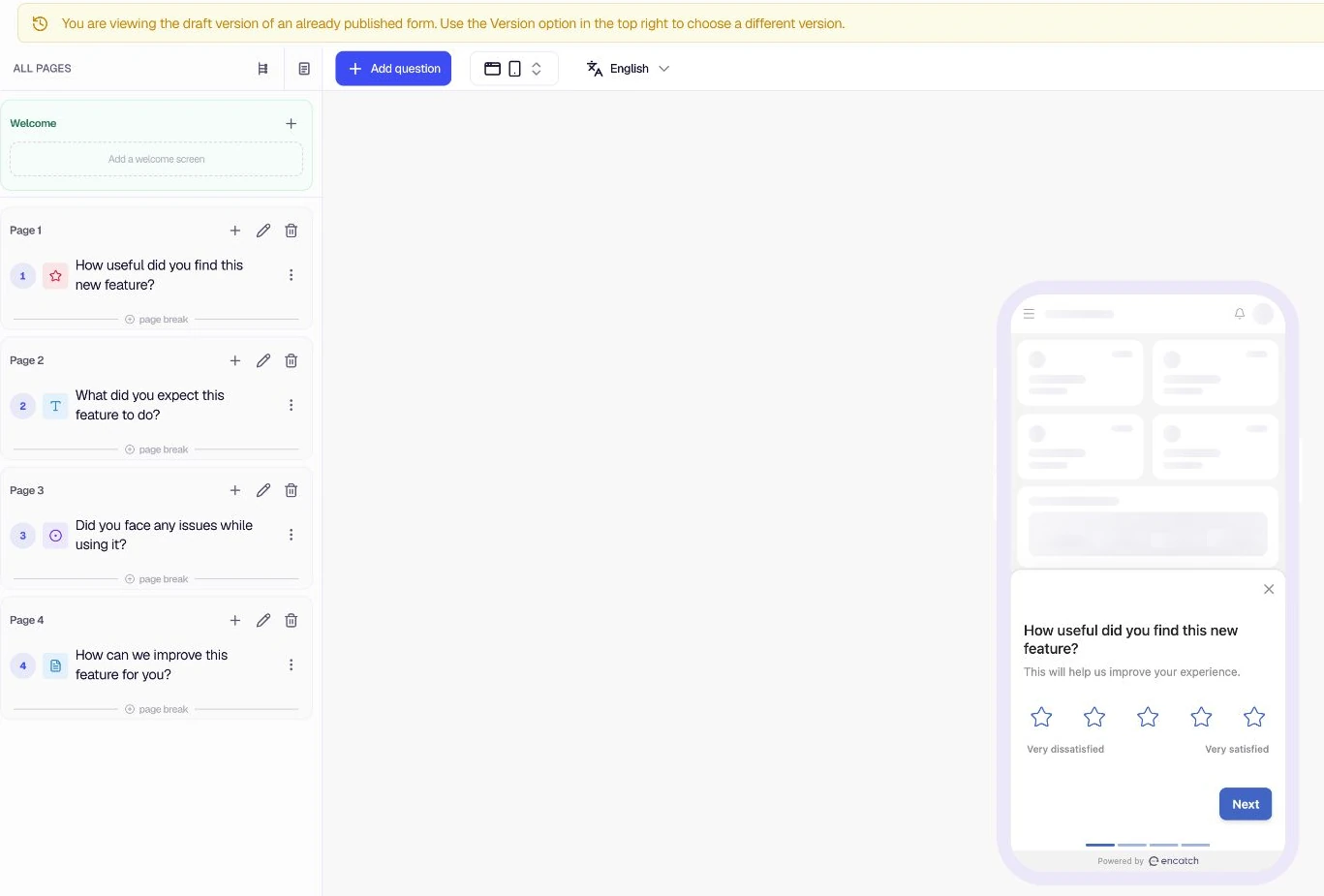
- Forms can have multiple pages. Use the page controls to add or delete pages.
- Move questions between pages by dragging them. This helps you create logical sections and control the flow of your survey.
- Each page can have its own set of questions; respondents advance page by page.
Step 5: Preview and Save
- A live preview on the right shows how the form will appear to respondents (including mobile view).
- Use the form-design actions to save your progress without publishing.
- Use the preview toolbar to review supported device layouts.
- Toggle between light and dark mode in the preview to check appearance in both themes.
Step 6: Configure Appearance, Targeting, and Triggers
Use the tabs at the top of the Form Builder to fine-tune your form:
- Questions: Add and edit questions, welcome screens, thank-you screens, and other fields.
- Appearance: Customize colors, fonts, and section layouts.
- Logic jumps: Route respondents through the form based on answers and context.
- Distribution: Configure In-App targeting and triggers, Link & Email, and Advanced Options.
- Destinations: Send responses to connected tools.
Step 7: Publish
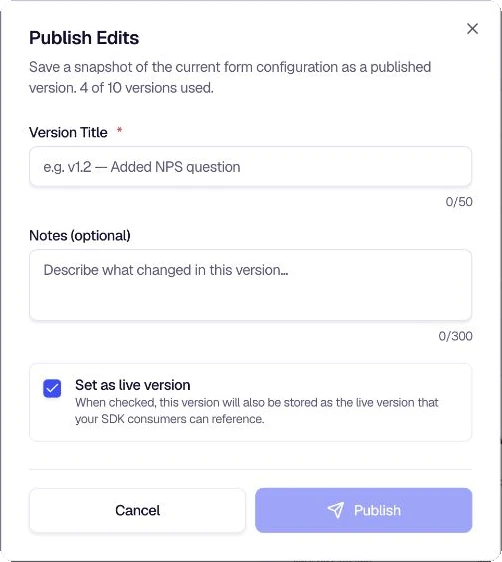
When your form is ready, click Publish or Publish Edits. Enter a version title, add optional notes, and choose whether the version should become live.
Form Builder Quick Reference
| Action | How |
|---|---|
| Add question | Click + Add Question |
| Edit question | Click the pencil icon |
| Delete question | Click the trash icon |
| Reorder questions | Drag using the vertical ellipsis handle |
| Add page | Use page controls (add page) |
| Configure Welcome/End Screen | Click edit icon on the configuration block |
| Save without publishing | Use the available form-design save action |
| Make form live | Click Publish or Publish Edits |
Summary
| Step | Action |
|---|---|
| Access | Open Forms → New Form → Start blank |
| Build | Configure Welcome/End/Other Fields and add questions |
| Organize | Use pages and drag-and-drop to structure the flow |
| Preview | Use live preview to see how respondents will experience the form |
| Configure | Set Appearance, Targeting, Triggers, and Advanced options |
| Publish | Click Publish to make the form live |
From Scratch gives you complete freedom to design feedback forms that match your exact needs. For detailed guidance on customizing forms, see Customize Feedback Form.
Was this page helpful?