

Create a Feedback
Step-by-step workflow for creating feedback forms in encatch
This guide walks you through the complete workflow for creating a feedback form in encatch, from New Form through selecting a creation method, customizing your form, and publishing.
Workflow Overview
Creating a feedback form in encatch follows three main steps:
- Create a form: Open Forms, click New Form, then choose a template, Start blank, or Encatch AI
- Customize form: Use the Form Builder to add questions, configure screens, and adjust settings
- Publish: Save and make your form live
Step 1: Select a creation method
Open Forms and click New Form. The creation dialog opens with the template browser, a Start blank action, and additional creation options below the template list.
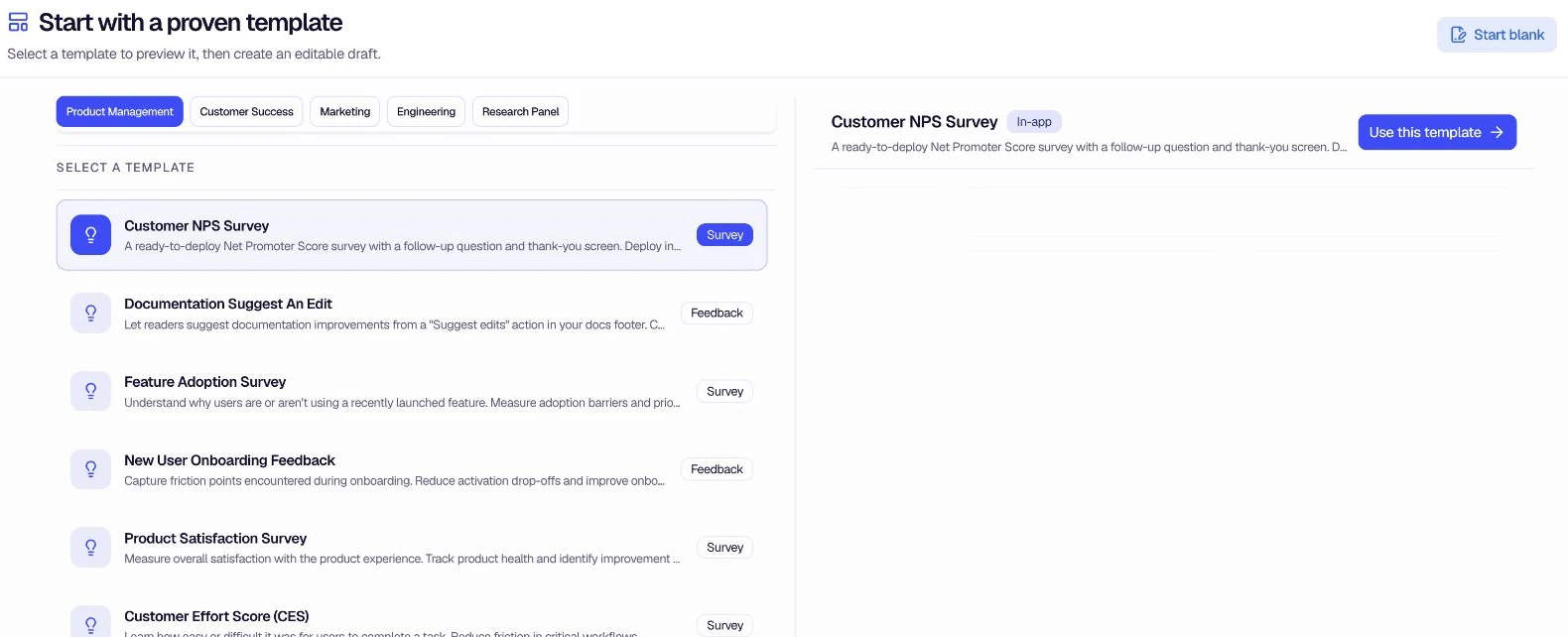
1. Generate with AI
Choose Encatch AI under Other ways to create, then describe what feedback you want to collect in plain language. encatch drafts a form with questions and structure tailored to your description. You can review the live preview and refine the result before moving it into the Form Builder.
Best for: Quick starts, exploratory feedback, or when you want AI to suggest question types and flow.
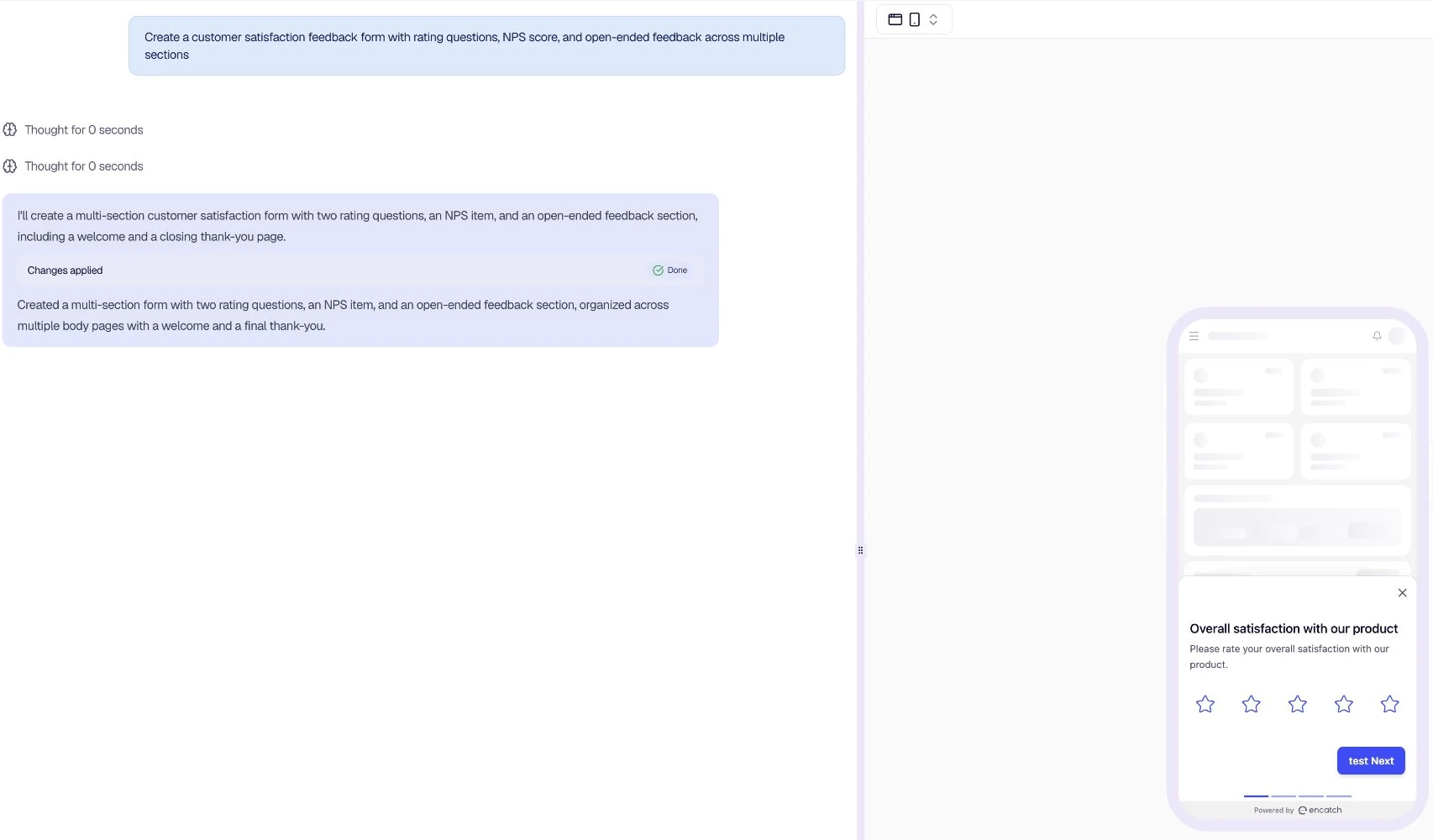
2. Using Templates
Start from pre-built templates for common scenarios such as feature adoption, onboarding feedback, and product satisfaction. Browse by team category, select a template to load its live preview, then click Use this template to create an editable draft.
Best for: Standard use cases (NPS, CSAT, feature requests, bug reports) where you want a proven starting point.
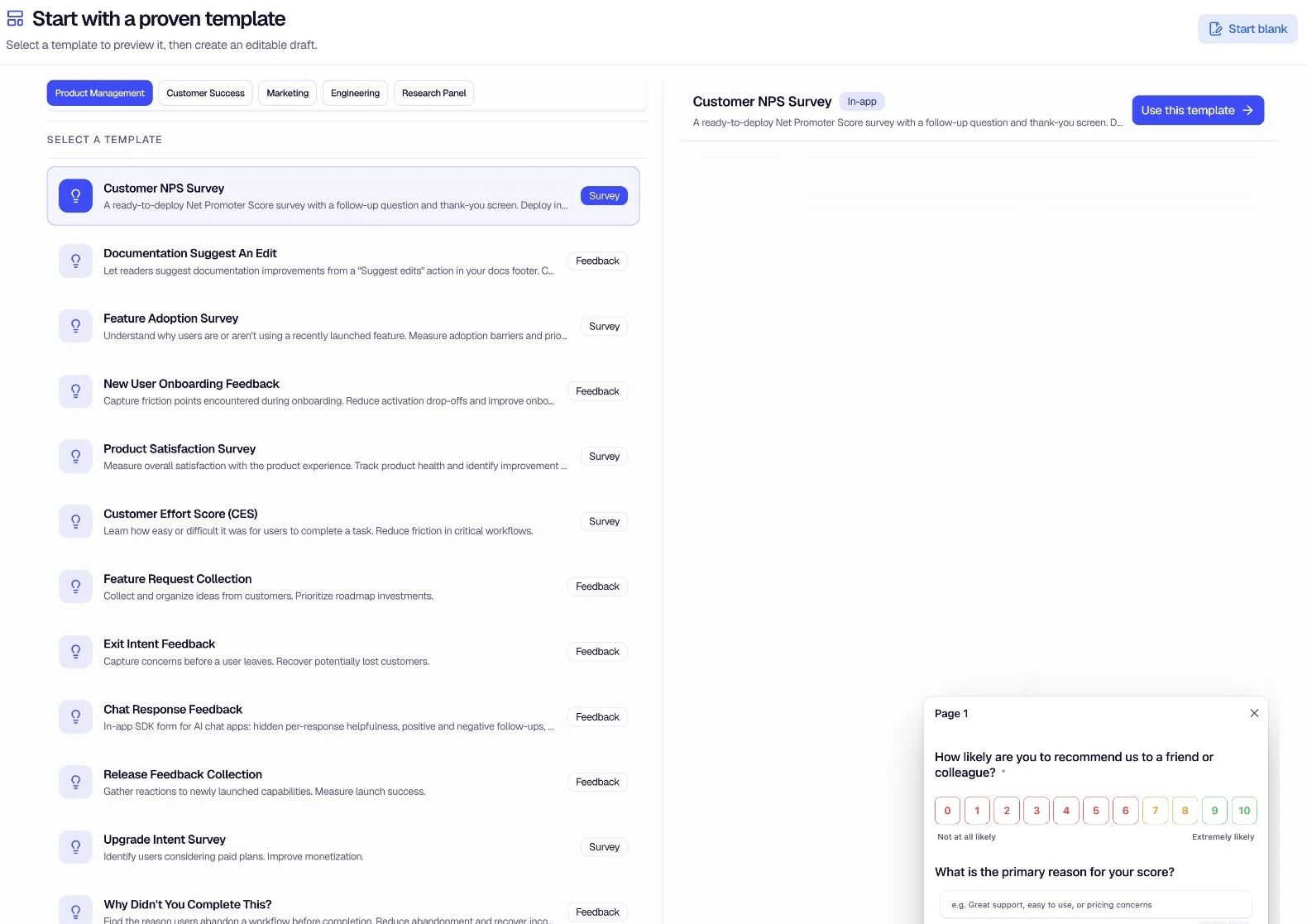
3. From Scratch
Build a form from scratch with full control over every question, page, and flow. Click Start blank in the creation dialog, enter a title and optional description, then add welcome screens, questions, and thank-you screens as needed.
Best for: Custom use cases or when you want complete control over structure and wording.
Step 2: Customize Form
Regardless of which method you chose, you land in the Form Builder where you can customize your form before publishing.
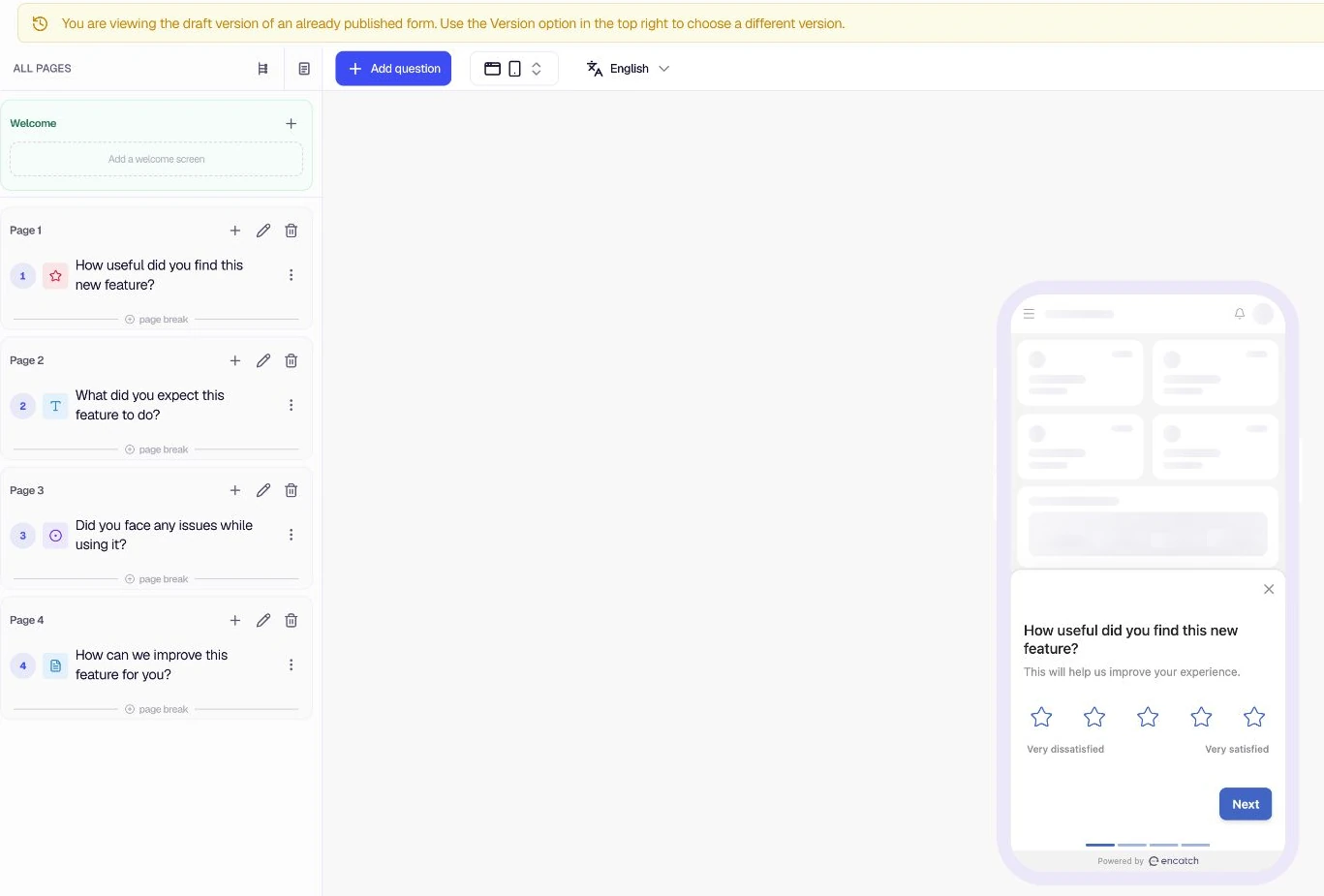
Form Builder Features
- Welcome Screen: Enable and configure an introductory screen
- End Screen: Set a thank-you message, redirect to store, or a third-party link
- Questions: Add, edit, reorder, and delete questions across multiple pages
- Other Fields: Configure display options (question numbers, page titles) and button labels
- Languages: Add multiple languages and use Auto Translate with AI
For a detailed guide on building and customizing forms, see the Customize Feedback Form page.
Quick Actions in the Form Builder
- Use + Add Question to add new questions
- Use the pencil icon to edit any element (Welcome Screen, End Screen, questions)
- Use the trash icon to delete pages or questions
- Use the drag handle to reorder questions within or between pages
- Use the form-design actions to save your progress
- Use the preview controls to review the form on supported devices
Step 3: Publish
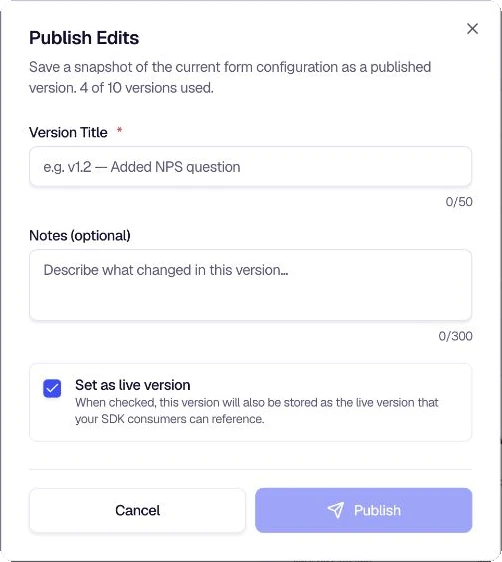
When your form is ready, click Publish or Publish Edits. The publish dialog asks for a required Version Title, optional notes, and whether this version should become the live version.
Before publishing, you can:
- Preview: See how the form looks and behaves
- Save: Save your work without publishing
- Configure: Use Form design, Distribution, and Destinations to finish the form before launch
After publishing, your feedback form is active and will collect responses based on your targeting and trigger settings.
Summary: Method Comparison
| Method | Entry Point | Best For |
|---|---|---|
| Generate with AI | New Form → Encatch AI | Quick starts, exploratory feedback |
| Using Templates | New Form → choose a template | Standard use cases (NPS, CSAT, feature requests) |
| From Scratch | New Form → Start blank | Full control, custom use cases |
All three methods lead to the same Form Builder, where you customize and publish.
Was this page helpful?