

Customize Feedback Form
Overview of how to build a feedback form
This guide walks you through building a feedback form in encatch. You can add questions, organize them into pages, support multiple languages, and customize the structure to match your needs.
Introduction
The form builder lets you create feedback forms step by step. You start with a blank form or a template, then add and configure form elements such as welcome screen, questions, thank you screen, and optional exit form marker. Forms can span multiple pages, support multiple languages, and be fully customized for branding and behavior.
Form Elements
Form elements are the building blocks of your feedback form. Each type serves a specific purpose in collecting user feedback. Use the links below to learn more about each element:
- Welcome Panel — Introductory screen before the survey. Set context, explain the purpose, and show estimated time to complete.
- Thank you screen — Closing screen after the form is completed; title, markdown description, and button label (for example Close).
- Exit form — Silent end-of-form marker (no visible screen); use as a Logic jumps target to stop the form without a thank-you step.
- Call to action — Post-submit behavior on thank-you screens and exit forms — redirects, in-app navigation, auto-trigger, and optional secondary button.
- Message panel — Informational panel between questions; title, markdown description, and continue button (default Next).
- NPS — Net Promoter Score (0–10) question for measuring loyalty.
- Single Choice — One option selected from a list.
- Multiple Choice — One or more options selected from a list.
- Nested Selection — Hierarchical dropdown selections with parent and child options.
- Rating — Star or numeric rating scale.
- Short Answer — Single-line text response.
- Long Answer — Multi-line text response.
- Other Fields Configuration — Display options (question numbers, page titles) and button labels (Submit, Previous, Next).
For a full overview of element types, see Element Types Overview.
Features of the Form
Add Questions
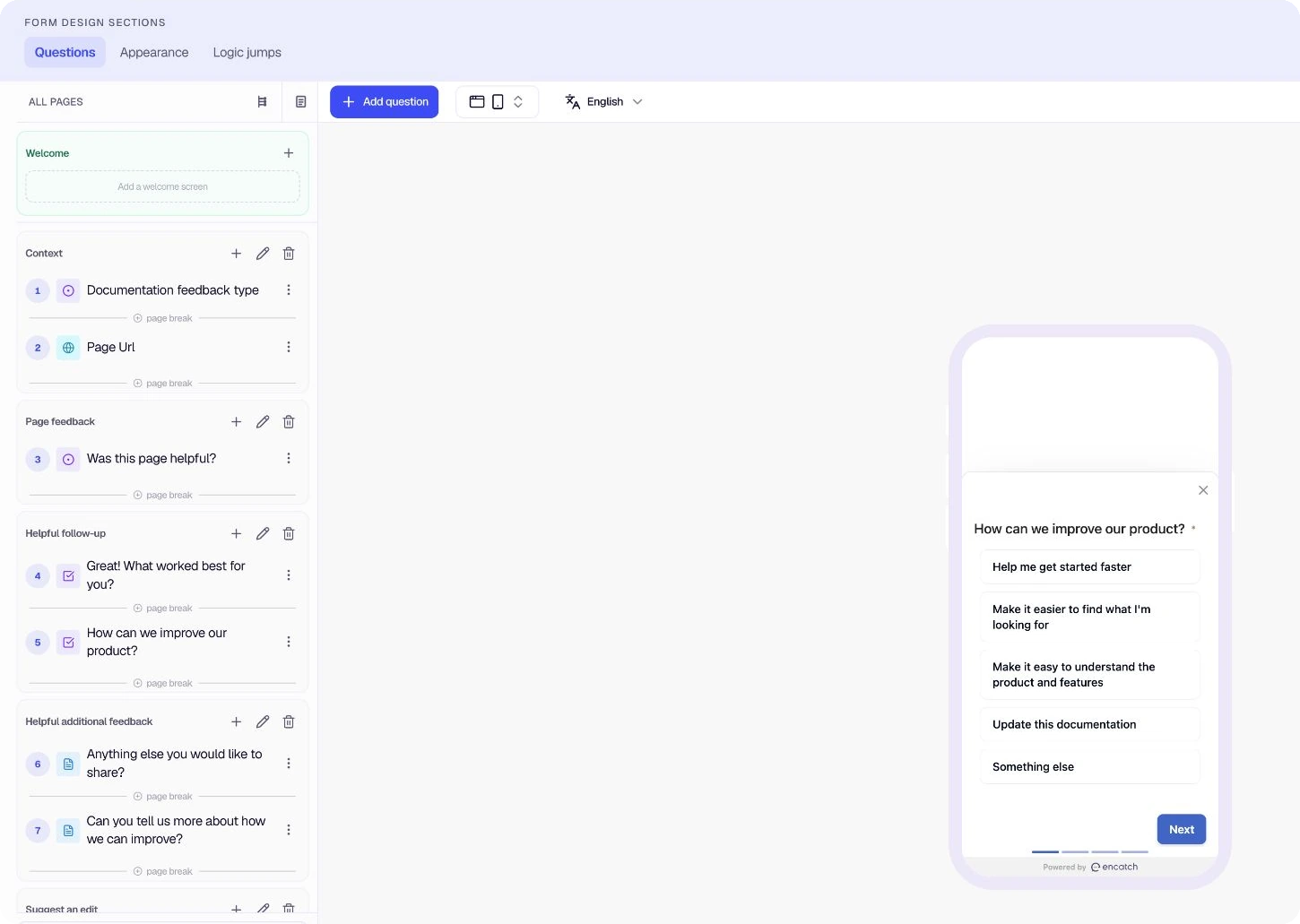
Use the + Add Question button to add new questions to your form. You can add questions to the current page or create new pages and add questions there. Use + Add More Questions at the bottom of a page to continue building.
Add Page Breaks
Organize your form into multiple pages. Each page can have its own title and set of questions. Add new pages using the + icon in the page header. This helps keep long forms manageable and improves completion rates by breaking content into smaller steps.
Add Languages
Support multiple languages from the language dropdown (e.g. English (1 language)). Add additional languages so respondents can complete the form in their preferred language. All form content—questions, welcome screen, end screen—can be translated per language. See Language Setup for configuration details and Auto Translate with AI.
Edit
Use the pencil (edit) icon next to any element—Welcome Screen, End Screen, Other Fields Configuration, page titles, or individual questions—to open the configuration dialog and customize settings.
Delete
Use the trash icon next to pages or questions to remove them from the form. Deleted content cannot be recovered, so confirm before removing.
Rearrange Questions
Use the drag handle (vertical ellipsis with up/down arrows) to the left of each question to reorder questions within a page. You can also move questions between pages by dragging them to the desired location.
Resize the editor and preview
Drag the divider between the form structure and the live preview to give either side more room. This is useful when editing long question text, reviewing a larger preview, or working on a smaller display.
The panel size changes only your builder workspace. It does not change the size or layout respondents see.
Logic jumps
Send respondents to different questions based on answers, SDK context, or user traits. Enable branching on the Logic jumps tab after you have added questions on the Form tab.
Was this page helpful?