

Language Setup
Configure multiple languages and Auto Translate for your feedback form
Language Setup lets you add multiple languages to your feedback form so respondents can complete it in their preferred language. You can select which languages to support, set a default language, and use Auto Translate to translate form content across all configured languages.
Purpose
Language Setup enables multilingual feedback forms. By adding multiple languages, you can:
- Reach a wider audience — Respondents see the form in their preferred language.
- Improve completion rates — Users are more likely to complete forms in their native language.
- Support global deployments — Forms can be localized for different regions and markets.
All form content—welcome screen, questions, end screen, labels, and error messages—can be configured per language. One language is designated as the default and serves as the primary or fallback language when a respondent's preference is not available.
Configuration
Selecting Languages
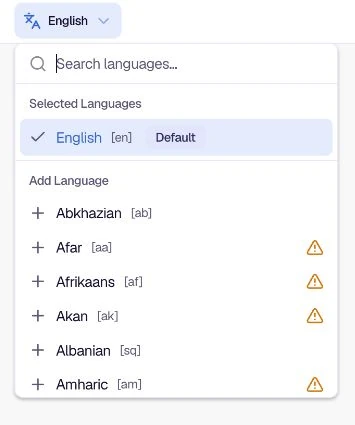
Open Form design, select Questions, then open the language menu in the builder toolbar. Use Search languages... to find a language by name or code.
The language menu has two sections:
Selected Languages — Lists languages currently active for your form. One language is marked as Default (e.g. English [en] Default). The [en] is the ISO 639-1 language code used for programmatic reference.
Add Language — Lists additional languages you can add. Each entry shows the language name and its code. Use the + icon next to a language to add it to Selected Languages. A warning icon marks languages that have not been configured under Settings → Translations.
Supported languages include Chinese, Hindi, Spanish, Arabic, and others. After adding a language, complete any missing translations before publishing the form.
Custom Language
If the language you need is not available in the dropdown, you can add a Custom Language. Scroll to the bottom of the Add Language list and click + Custom Language.
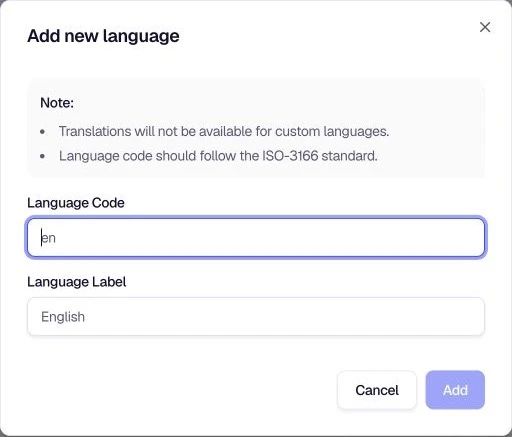
The Add new language dialog opens with two fields:
- Language Code — Enter the code used to identify the language. The dialog requires an ISO-3166-style code.
- Language Label — Enter a human-readable name for the language (e.g.
English). This label appears in the language selector and tabs.
Custom languages do not support translation content. Use them when your integration needs a custom language identifier and label rather than a translated form variant. Click Add to add the custom language, or Cancel to close the dialog without changing the form.
Editing Content Per Language
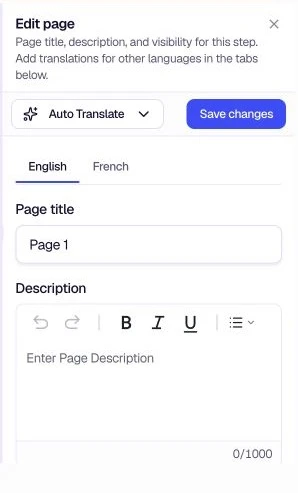
When editing form elements—such as the Welcome Screen, End Screen, or individual questions—you can switch between languages using tabs at the top of the edit dialog. Each tab shows the content for that language so you can enter or adjust text for questions, descriptions, error messages, and labels (e.g. minimum and maximum rating labels) per language.
Auto Translate with AI
Auto Translate uses AI to translate form content from one language into your other configured languages. This reduces manual translation work and helps keep content consistent across languages.
How to Use It
The Auto Translate button (with a sparkle icon) appears in the Questions toolbar and in editors that contain translatable content. Click it to open the translation menu:
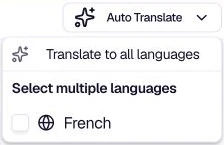
Translate to all languages — Translates the form or open editor content into every configured language.
Select multiple languages — Lets you choose which languages to translate into. Check the boxes for languages you wish to translate. Only the selected languages receive the AI translation.
After choosing an option, the system fills the corresponding language tabs. Review the translations and adjust them as needed. In an open page or question editor, click Save changes to apply the edited content.
When to Use Auto Translate
- Initial setup — After adding new languages, use Auto Translate to quickly populate content from your default language.
- Bulk updates — When you change question text, labels, or messages in one language, use Auto Translate to update the other languages.
- Consistency — AI translation helps maintain consistent terminology and tone across languages.
Was this page helpful?