

Slack
Configure Slack triggers to receive notifications whenever users submit feedback
Overview
The Slack destination lets you send notifications to a Slack channel every time someone submits feedback through your forms. Whether you want your team to stay in the loop on customer sentiment, catch bug reports as they come in, or simply never miss a response—Slack triggers ensure feedback lands in your workspace the moment it arrives.
This guide walks you through the full setup, from creating your first Slack destination to customizing how those messages look. We'll keep things straightforward and explain each step along the way so you can get up and running without any guesswork.
What You'll Need
Before you start, make sure you have:
- A feedback configuration — The form or feedback stream you want to send to Slack
- A Slack workspace — Where you want notifications to appear
- A Slack Bot Token — A bot token that starts with
xoxb-(you'll create this in your Slack app settings) - A Channel ID — The ID of the channel where messages should be posted (typically starts with
C)
If you're not sure how to create a bot token, go to api.slack.com/apps, create or select an app, add the chat:write and chat:write.public scopes (if posting to public channels), install the app to your workspace, and copy the Bot User OAuth Token. Keep it secure—treat it like a password.
Step 1: Open the Destinations Page
Head to the Destinations section in your encatch dashboard. This is where you manage all your integration endpoints—Slack, Discord, Email, Jira, GitLab, GitHub, Webhooks, and more.
On the Destinations page, you'll see a table showing any destinations you've already set up (or an empty table if you're starting fresh). In the top-right corner, look for the Add Destination button—that's your starting point.
Click Add Destination to open the configuration flow.
Step 2: Add a New Destination
A modal titled Add New Destination opens with a Realtime Destination badge.
Feedback, destination name, and description
Choose a published form from Feedback, enter a required Destination name, and optionally add a Description such as "Slack alerts for product feedback" or "Notify #support when users submit feedback".
Select a connector
In the Connector list, find Slack Notification. Realtime connectors appear as selectable rows with their name, description, version, and connector tag.
Find the Slack Notification row:
- TYPE: Slack (with the Slack icon)
- NAME: Slack Notification
- DESCRIPTION: Send Notifications to Slack
- VERSION: v1
Click the Slack Notification row. The selected row is highlighted and shows a checkmark.
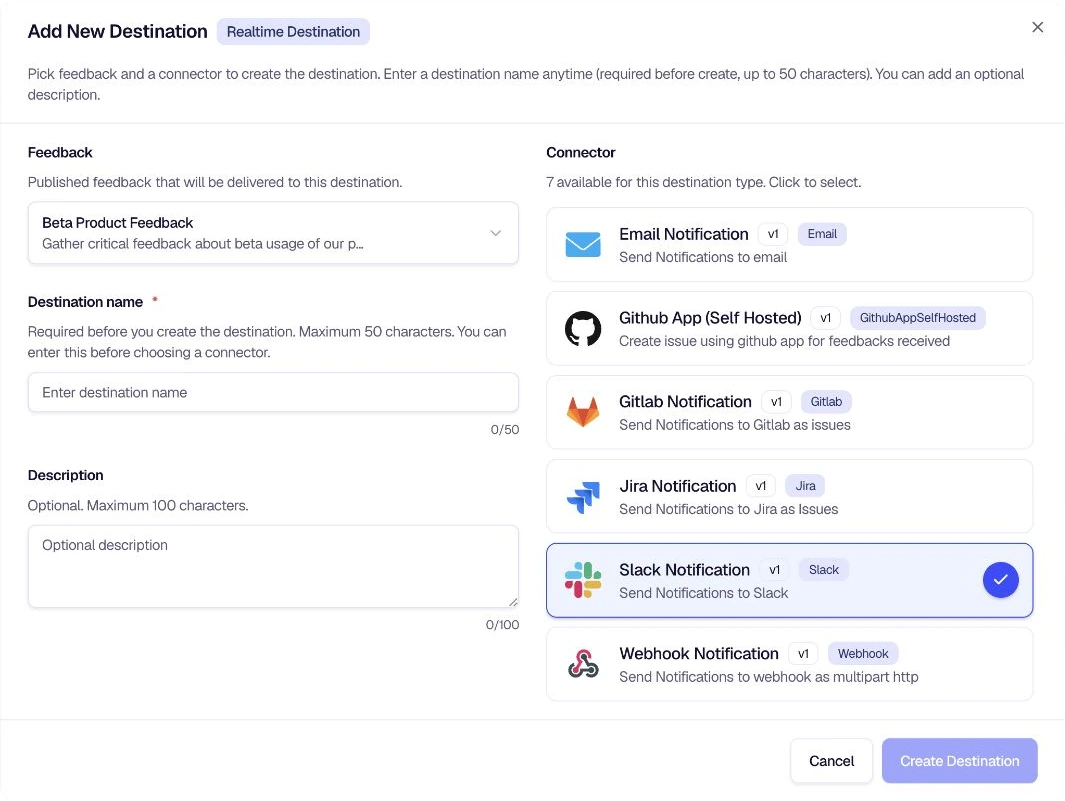
Then click Create Destination at the bottom of the modal to proceed.
Step 3: Configure Your Slack Destination
After creating the destination, you'll land on the Edit Destination page (or Configure your feedback destination settings). This is where you set up all the details that control how and where your Slack notifications are sent.
Destination Details (Left Column)
On the left, you'll see cards for:
- Destination Details — Confirm the type (e.g., Realtime) and any high-level settings
- Feedback Configuration — The feedback form you linked in the previous step
- Connector Configuration — Shows "Slack Notification" and its description
- Destination Name — Edit the name you gave earlier if needed (e.g., "Slack")
- Destination Description — Edit the description if needed
Click Save Details when you're done with these fields.
Slack Configuration (Right Column)
The right side is where the Slack-specific settings live. These are the credentials and message details encatch needs to post to your Slack channel.
Slack Bot Token
Enter your Slack Bot Token. This is used for authentication—encatch never stores your Slack password. The token typically starts with xoxb-. Create one from your Slack app settings if you haven't already. The value will be masked for security once saved.
Channel ID
Enter the ID of the Slack channel where you want notifications to appear. Channel IDs typically start with C (e.g., C02L8XXXX). You can find this by right-clicking the channel in Slack, selecting View channel details, and copying the channel ID from the bottom of the details panel. This field is required.
Message
This is a large text area where you define the content of the Slack message. Slack uses Block Kit—a JSON structure—so your message can include headers, sections, dividers, and formatted text. You can use a templating language (e.g., Jinja2-style syntax) to inject feedback data dynamically.
A typical structure might look like:
{
  "blocks": [
    {
      "type": "header",
      "text": {
        "type": "plain_text",
        "text": " Feedback Summary"
      }
    },
    {
      "type": "divider"
    }
  ]
}
You can then use templating to loop over feedback questions and add sections dynamically. For example, for multiple-choice answers:
{%- for question in questions -%}
{%- if question.value is defined and question.value | length > 0 %}
{
  "type": "section",
  "text": {
    "type": "mrkdwn",
    "text": "✅ Answers:\n{% for choice in question.value %} {{ choice.label | default(value='Not filled') }}\n{% endfor %}"
  }
}
{%- endif %}
{%- endfor -%}
This template lets you loop over feedback questions and format each one based on its type—ratings, short answers, long text, single choice, and multiple choice. Whatever you put here will become the content of the Slack message, so you can include feedback responses, device info, timestamps, and other metadata for full context.
Notification Message
You can optionally set a Notification Message that appears as the main notification text (e.g., "New feedback received"). This is the short message shown before the full message body.
Mention your message
If you want to mention specific users or channels in the notification (e.g., @support or @channel), use the Mention your message field. Add the Slack mention syntax you need.
Click Save Configuration when you're done.
Step 4: Configure Filters (Optional)
Use Custom Filter for exact field-based rules, or AI Filter when the decision depends on the meaning of the response. Matching events continue to Slack; non-matching events are not sent.
Click Test and Enable Custom Filter to build and validate a deterministic rule.
If you want to filter which feedback triggers a Slack notification, you can enable the AI Filter.
The AI Filter uses natural language prompts to decide which feedback should be forwarded to Slack. For example, you might only want to notify your team for negative feedback, or for feedback that mentions specific keywords like "bug" or "crash."
To enable it:
- In the AI Filter section, click Test and Enable AI Filter
- Configure your prompt to define the criteria
- Test the filter with sample feedback to ensure it behaves as expected
If you prefer to receive every notification without filtering, you can leave the AI Filter disabled.
AI Filters use AI Credits. Each execution consumes 1 AI Credit. See the AI Filters guide for more details.
Step 5: Test and Enable
Before going live, test your setup. On the Destination Status card, click Test & Enable Destination to verify your Slack credentials work and that encatch can successfully post a test message to your channel. Once the test passes, the destination will be enabled and will start sending real notifications for every new feedback response that matches your configuration (and any AI filter you've set up).
Summary
Here's a quick recap of the flow:
Go to Destinations — Click Add Destination on the Destinations page.
Select Slack connector — Choose a published feedback form, add a destination name and optional description, then select Slack Notification from the connector list and click Create Destination.
Configure Slack credentials — Enter your Slack Bot Token and Channel ID to connect encatch to your Slack workspace.
Set up the message template — Configure the Message field with Block Kit JSON and templating so each feedback response becomes a well-structured Slack message.
Optional: Add a filter — Use a Custom Filter for exact rules or an AI Filter for meaning-based routing.
Test and enable — Click Test & Enable Destination to validate the configuration and activate delivery.
Tips and Best Practices
- Use descriptive channel names — Pick a channel that clearly indicates its purpose (e.g.,
#feedback-alerts,#customer-support). - Leverage Block Kit — Use headers, sections, dividers, and
mrkdwnfor rich formatting so messages are easy to scan. - Include context — Add device info, URL, and user context in your template so your team has everything they need without digging for it.
- Test before enabling — Always run a test to ensure credentials work and templates render correctly.
- Consider AI filters — If you receive a lot of feedback, an AI Filter can reduce noise by only notifying for feedback that meets your criteria.
Troubleshooting
Was this page helpful?