

Configure email triggers to receive notifications whenever users submit feedback
Overview
The Email destination lets you receive email notifications every time someone submits feedback through your forms. Whether you want to stay on top of customer sentiment, catch bug reports quickly, or simply never miss a response—email triggers ensure feedback lands in your inbox the moment it arrives.
This guide walks you through the full setup, from creating your first email destination to customizing how those notifications look and when they're sent. We'll keep things straightforward and explain each step along the way.
What You'll Need
Before you start, make sure you have:
- A feedback configuration — The form or feedback stream you want to receive notifications for
- SMTP credentials — Your email server details (host, port, username, password) from your email provider
- Recipient email address(es) — Where you want the notifications to go
If you're not sure about SMTP settings, your email provider (Gmail, Outlook, your company's IT team, etc.) can usually provide these. Many providers use port 587 with TLS for secure sending.
Step 1: Open the Destinations Page
Head to the Destinations section in your encatch dashboard. This is where you manage all your integration endpoints—Slack, Discord, Jira, webhooks, and of course, email.
On the Destinations page, you'll see a table showing any destinations you've already set up (or an empty table if you're starting fresh). In the top-right corner, look for the Add Destination button—that's your starting point.
Click Add Destination to open the configuration flow.
Step 2: Add a New Destination
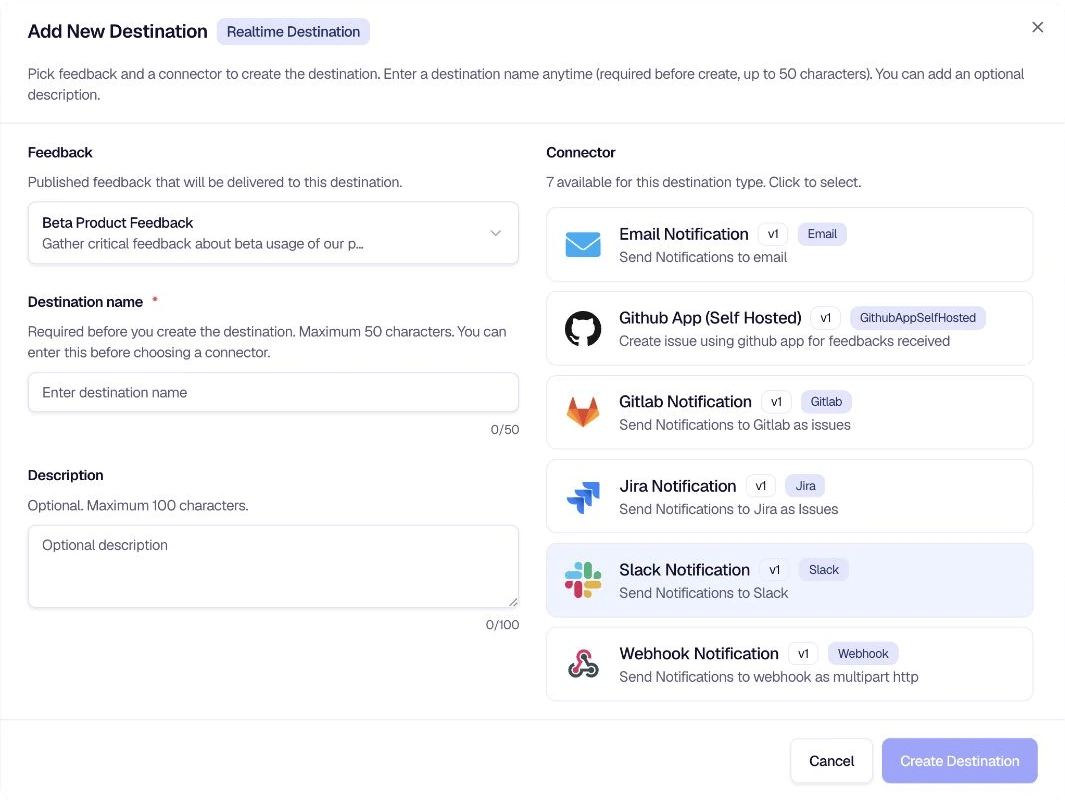
A modal titled Add New Destination opens with a Realtime Destination badge—this is the type you want for instant email alerts whenever feedback is submitted.
The modal is divided into a few sections:
Feedback
Choose the published feedback form this destination will listen to from the Feedback dropdown.
Destination Name and Description
Give your destination a clear, recognizable name—something like "Destination Email" or "Feedback Alerts to Team". This helps you identify it later when you have multiple destinations.
Optionally, add a Description such as "Destination config for email alerts" to document what this setup is for. These details are especially helpful when working in a team.
Step 3: Select the Email Notification Connector
In the Connector list, find Email Notification. Realtime connectors appear as selectable rows with their name, description, version, and connector tag.
Find the Email Notification row:
- TYPE: Email
- NAME: Email Notification
- DESCRIPTION: Send Notifications to email
- VERSION: v1
Click the Email Notification row to choose it as your connector.
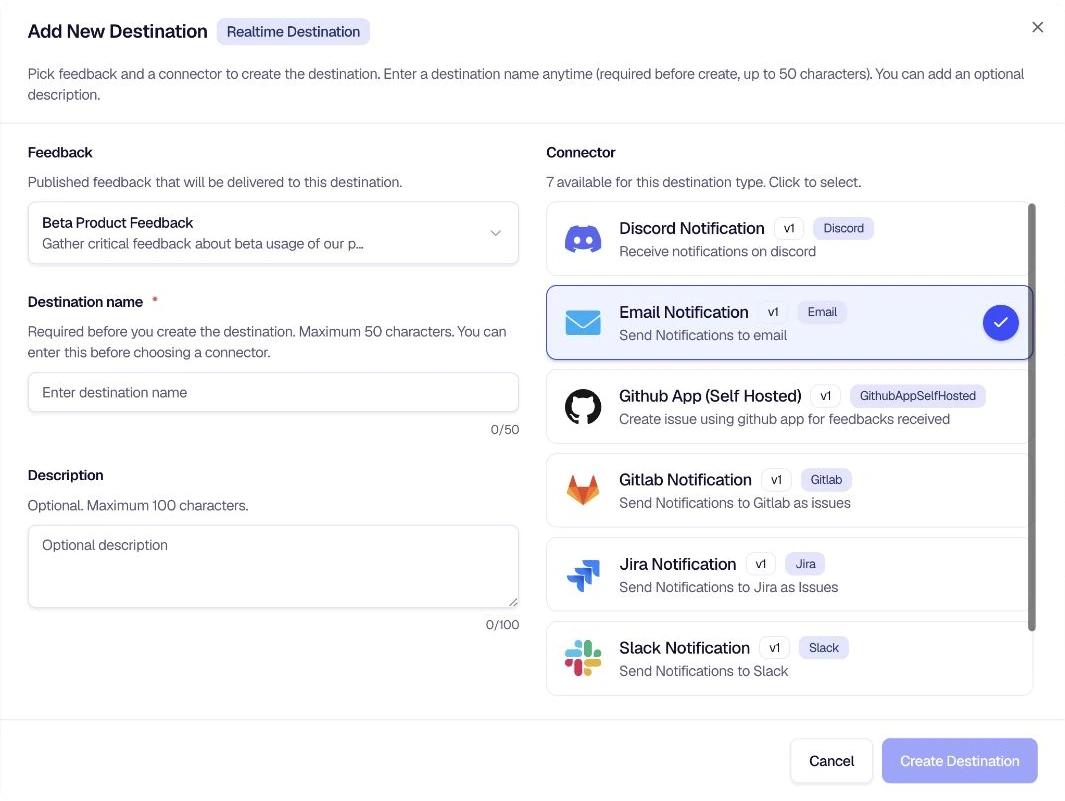
The selected row is highlighted and shows a checkmark. Then click Create Destination at the bottom of the modal to proceed.
Step 4: Configure Your Email Destination
After creating the destination, you'll land on the Edit Destination page. This is where you configure all the details that control how and where your email notifications are sent.
Destination Details (Left Column)
On the left, you'll see cards for:
- Destination Details — Confirm the type (e.g., Realtime) and any high-level settings
- Feedback Configuration — The feedback form you linked in the previous step
- Connector Configuration — Shows "Email Notification" and its description
- Destination Name — Edit the name you gave earlier if needed
- Destination Description — Edit the description if needed
Click Save Details when you're done with these fields.
Configuration (Right Column)
The right side contains the email delivery settings.
To Address
Enter the email address that should receive notifications. This field is required. The helper text in the editor indicates that comma-separated recipients are supported.
The same card contains the SMTP settings encatch uses to send the notification:
- SMTP Host — The hostname of your outgoing mail server
- SMTP Port — The port used by your SMTP server for secure submission
- Username — The username for authenticating with your SMTP server
- Password — The password for the SMTP account
- From Email — The default sender address shown in the "From" field
Fill in these details according to your email provider's documentation. If you're unsure, check your provider's help pages for "SMTP settings" or "outgoing mail server."
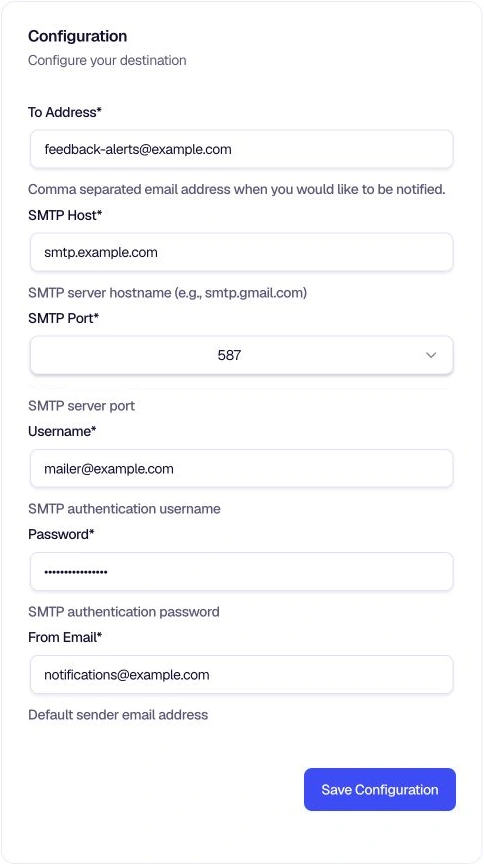
Click Save Configuration when you're done.
Step 5: Configure Filters (Optional)
The Custom Filter and AI Filter cards sit below the destination details.
- Custom Filter — Build deterministic conditions for which submissions continue to this destination. Click Test and Enable Custom Filter to configure and validate the rule.
- AI Filter — Use a natural-language prompt when the decision depends on the meaning of the response.
If you want to filter which feedback triggers an email, you can enable the AI Filter.
The AI Filter uses natural language prompts to decide which feedback should be forwarded to your destination. You can instruct it to, for instance, only forward negative feedback or feedback containing specific keywords.
To enable it:
- Click Test and Enable AI Filter
- Configure your prompt in the AI Filter section
- Test the filter with sample feedback to ensure it behaves as expected
If you prefer to receive every email without filtering, you can leave the AI Filter disabled.
AI Filters use AI Credits. Each execution consumes 1 AI Credit. See the AI Filters guide for more details.
Step 6: Test and Enable
Before going live, click Test & Enable Destination in the Destination Status card. encatch validates the SMTP configuration and enables the destination when the test succeeds. New submissions that match your Custom Filter or AI Filter are then sent to the configured recipient address.
Summary
Here's a quick recap of the flow:
Go to Destinations — Click Add Destination on the Destinations page.
Select feedback and connector — Choose a published feedback form, add a destination name and optional description, then select Email Notification from the connector list.
Create the destination — Click Create Destination to proceed.
Configure email delivery — Set the To Address, SMTP host, port, username, password, and From Email.
Optional: Add a filter — Configure a Custom Filter for exact rules or an AI Filter for meaning-based routing.
Test and enable — Click Test & Enable Destination to validate the configuration and activate delivery.
Tips and Best Practices
- Support multiple recipients — Add comma-separated addresses for team notifications.
- Test before enabling — Always run a test to ensure the SMTP credentials and sender settings work.
- Choose the right filter — Use a Custom Filter for exact field rules and an AI Filter when meaning or intent matters.
Troubleshooting
Was this page helpful?