

Private Insights
Analyze and explore your private feedback insights with on-device AI
Introduction
Private Insights lets you analyze and explore your feedback data using AI that runs entirely on your own device. Unlike cloud-based AI tools that send your data to external servers, Private Insights keeps everything local. Your feedback data is stored on your machine, and the Large Language Model (LLM) that powers the analysis runs in your browser. No API calls are made for data processing, which means your sensitive feedback never leaves your computer.
Think of Private Insights as a confidential analyst sitting on your desk. You provide the data, choose the AI model that runs locally, and ask questions in plain English. The AI analyzes your feedback, identifies patterns, and answers your questions—all without sending a single byte of data over the network. This makes Private Insights ideal for teams working with confidential feedback, internal product discussions, or any scenario where data privacy is non-negotiable.
Benefits
Complete data privacy. The most important benefit of Private Insights is that your data never leaves your device. Everything—from the raw feedback you load to the AI analysis—happens locally in your browser. There are no API calls for data processing, no server logs, and no retention of your feedback on external systems. If you work with customer support tickets, internal surveys, or sensitive product feedback, Private Insights ensures that confidential information stays exactly where it belongs: on your machine.
No vendor lock-in or usage limits. Because the LLM runs on your device, you are not subject to per-request pricing, rate limits, or usage caps. You can analyze as much feedback as your machine can handle, ask as many questions as you like, and iterate on your analysis without worrying about costs or quotas. This is especially useful for teams that need to explore large feedback datasets or run repeated analyses during product planning cycles.
Flexibility in model choice. Private Insights supports multiple on-device LLMs, so you can pick the one that best fits your needs. If you want the simplest setup with no downloads, you can use Browser Native Chat (Chrome's built-in AI). If you need more capable analysis and have the disk space and RAM, you can choose from models like Falcon, SmolLM, TinyLlama, or DeepSeek R1 Distill. Each model has different trade-offs between speed, capability, and resource usage, so you can tailor the experience to your hardware and workload.
Natural language analysis. You do not need to write queries or learn a query language. Simply type your questions in plain English—for example, "Which is the common category of issue reported?" or "What are the main themes in the feedback for the Dashboard feature?" The AI reads your context data, understands the structure, and returns clear answers with explanations. You can ask follow-up questions to dig deeper, and the conversation builds on itself so you can explore your feedback iteratively.
Works with structured feedback. Private Insights is designed to work with structured feedback data. You can load feedback that includes fields like FeedbackID, UserID, UserType, Platform, AppVersion, FeatureArea, Rating, FeedbackText, BugReport, Screenshot, and Date. The AI uses this structure to understand your data and provide relevant insights. You can edit the data before analysis to add, remove, or refine entries, ensuring the AI has the right context for your questions.
System Requirements
Before you start, make sure your machine meets the requirements for running local models. Private Insights needs a modern Chrome browser with sufficient resources to load and run an LLM on your device.
Browser. Use a recent version of Chrome (139 or newer). Some models, such as Browser Native Chat, rely on Chrome's built-in on-device AI capabilities, so an up-to-date browser is essential.
Memory and storage. Your machine should have at least 16 GB of RAM and enough free disk space for the model you choose. Smaller models like SmolLM2 360M require around 0.7 GB of disk space, while larger models like DeepSeek R1 Distill 7B need about 3.1 GB. Plan accordingly based on the model you select.
GPU support. For smoother performance, especially with larger models, a machine with GPU support is recommended. This helps the model run faster and reduces the load on your CPU.
For more details on Chrome's on-device models and compatibility, follow the "Learn more about Chrome on-device models" link shown on the Private Insights page.
How to Use Private Insights
Step 1: Open Private Insights
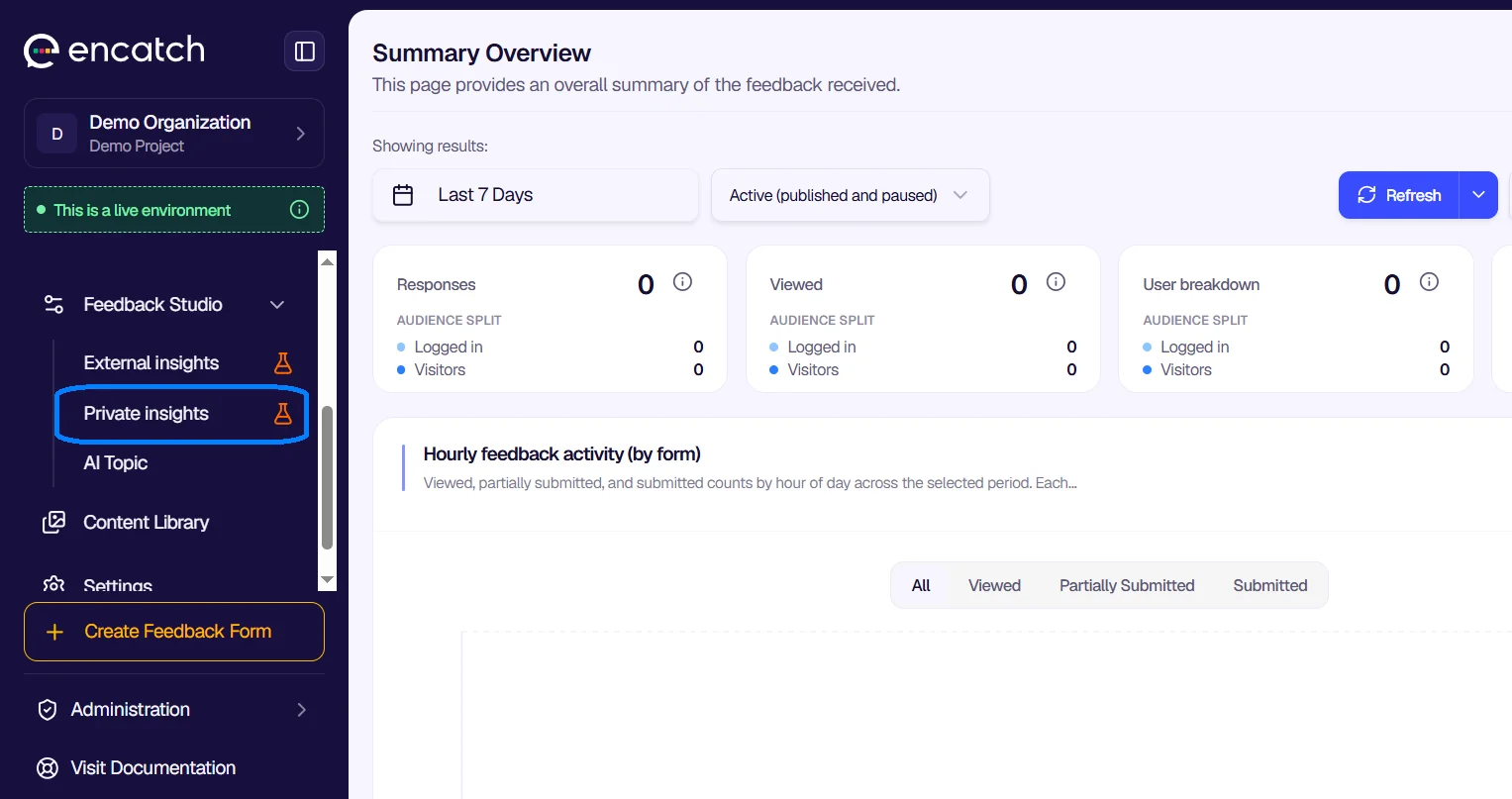
In the encatch admin, go to Feedback Studio in the left navigation. Expand the Feedback Studio section and select Private Insights. You will see the main page with the tagline "Analyze and explore your private feedback insights," along with an information banner explaining that data is stored on your device and no API calls are made for processing.
Step 2: Choose an LLM
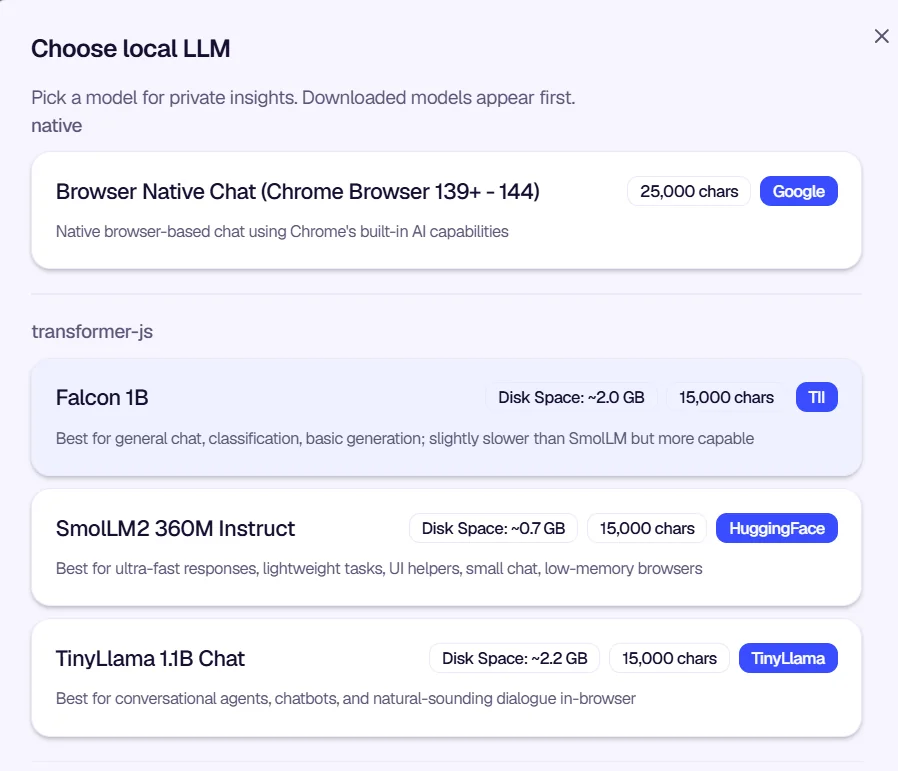
The first step is to select which Large Language Model will power your analysis. Click the Select an LLM dropdown to see the available options.
Browser Native Chat (Chrome Browser 139+-144). This option uses Chrome's built-in AI capabilities. It requires no download and supports up to 25,000 characters of context. It is the easiest option if you want to get started quickly and your Chrome version supports it.
SmolLM2 360M Instruct. A lightweight model requiring about 0.7 GB of disk space. Best for fast responses, lightweight tasks, and low-memory environments. Supports up to 15,000 characters.
Falcon 1B. Requires around 2.0 GB of disk space. Good for general chat, classification, and basic generation. Slightly slower than SmolLM but more capable. Supports up to 15,000 characters.
TinyLlama 1.1B Chat. Requires about 2.2 GB of disk space. Best for conversational agents, chatbots, and natural-sounding dialogue. Supports up to 15,000 characters.
DeepSeek R1 Distill 7B. Requires about 3.1 GB of disk space. Best for small-reasoning tasks and more complex analysis. Supports up to 15,000 characters.
Each model lists its disk space requirement, character capacity, and provider. Choose the one that matches your hardware and the complexity of analysis you need. Once selected, the model loads on your device and is ready for use.
Step 3: Add or Edit Your Context Data
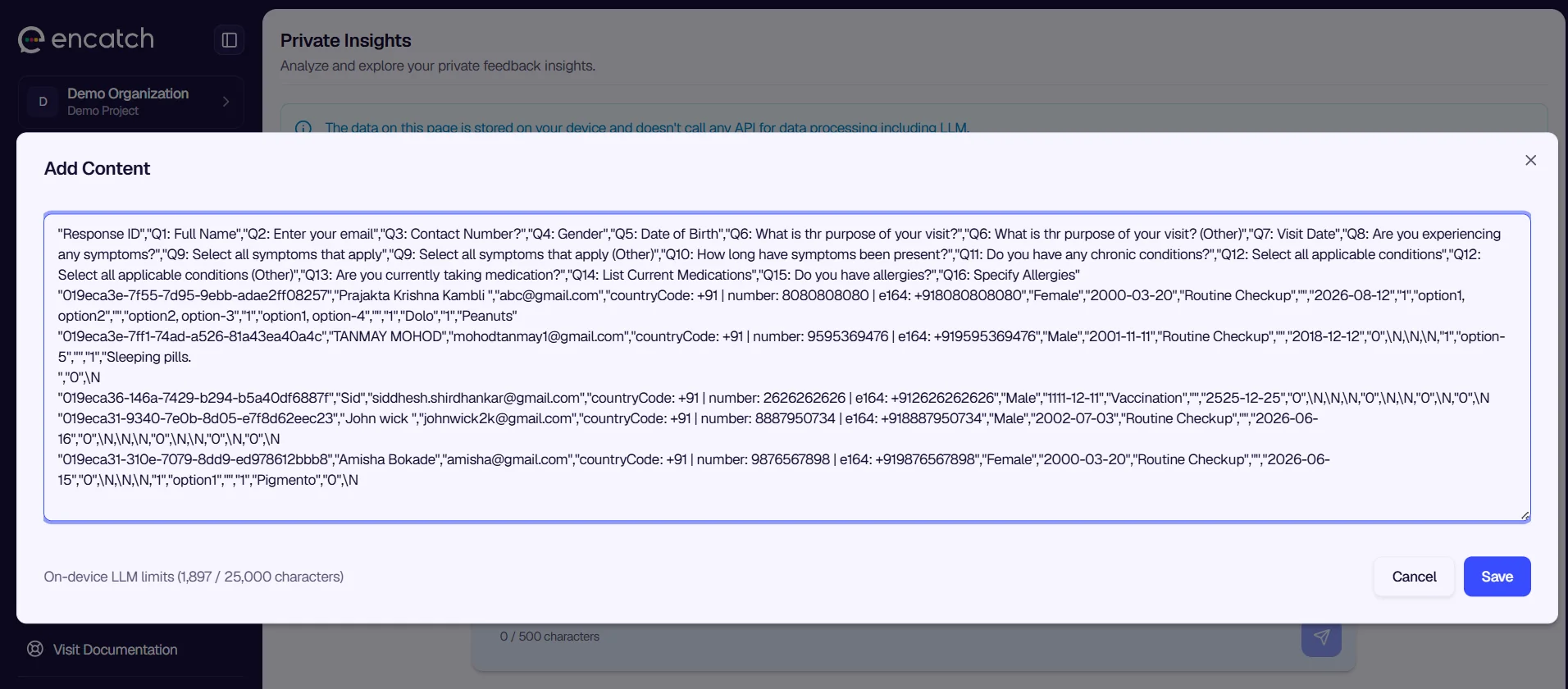
The Context Data section shows the feedback data that the AI will analyze.
Step 4: Ask Questions and Explore Insights
In the chat area, type your question in the input field. For example, you might ask "Which is the common category of issue reported on Zendesk?" or "What are the main pain points mentioned in the Dashboard feedback?" Press Enter or click the send button to submit your question.
The AI reads your context data, understands the structure, and responds with an analysis. It might identify that bug reports are the most common category, list which feedback entries support that finding, and explain its reasoning. You can ask follow-up questions to drill down—for example, "Which feature areas have the most bug reports?" or "Summarize the feedback for the Login feature."
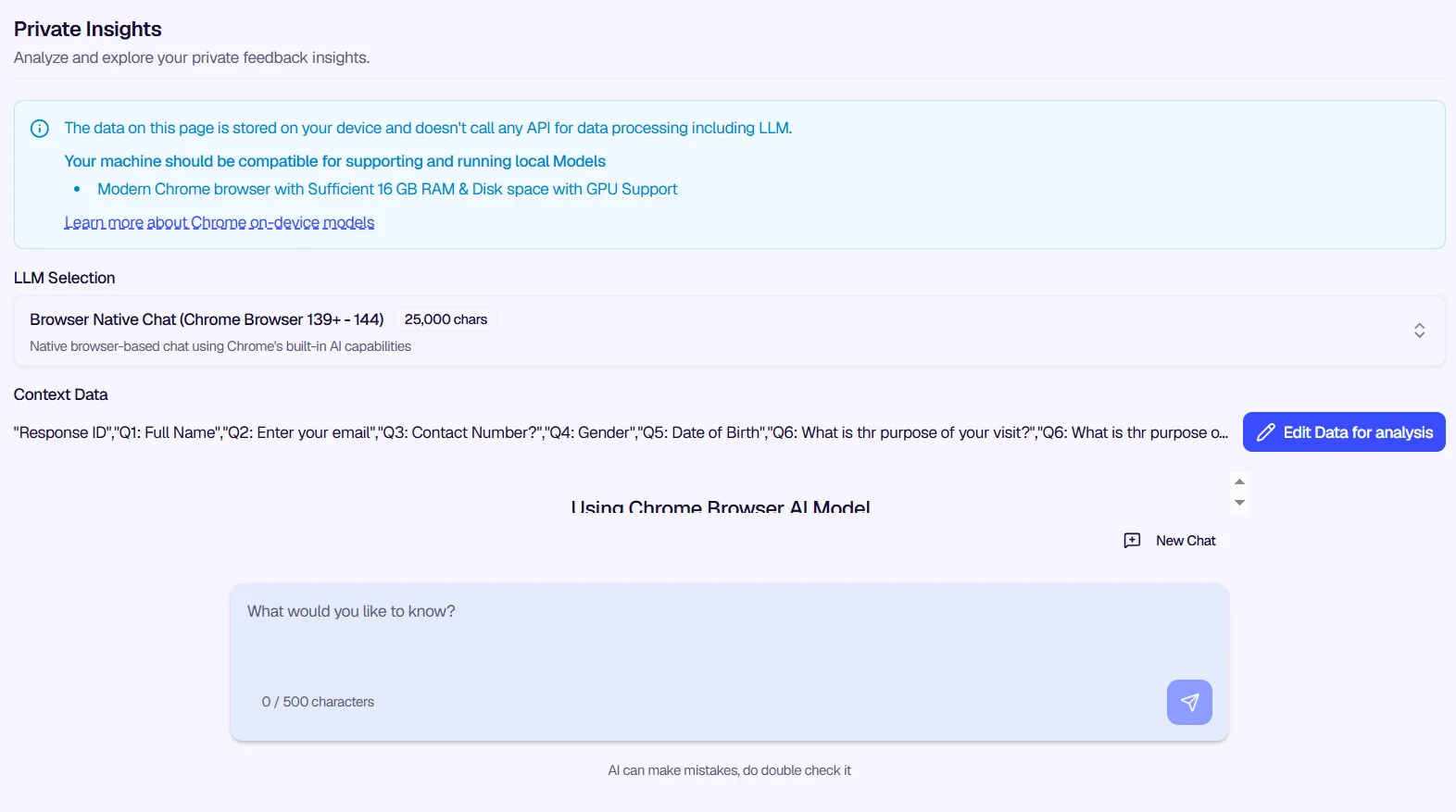
A token counter (for example, "Tokens left: 7,600 (1,616/9,216)") shows how much of the model's context window you have used. If you want to start fresh, click New Chat to begin a new conversation. The AI can make mistakes, so always double-check important findings before acting on them.
Step 5: Iterate and Refine
Use the conversational interface to explore your feedback from different angles. Ask about trends, categories, severity, platform-specific issues, or any other dimension that matters to you. The more specific your questions, the more useful the answers. You can also go back to Edit Data for analysis to add more feedback or adjust the dataset, then continue the conversation with the updated context.
Example Use Cases
Analyze support ticket themes. If you export support tickets (for example, from Zendesk) into a structured format, you can load them into Private Insights and ask which categories of issues are most common, which features generate the most complaints, or what patterns appear across different user types. All of this happens locally, so sensitive ticket content never leaves your device.
Explore internal feedback confidentially. When your team collects internal feedback on a new feature or product direction, you can analyze it with Private Insights without sending that feedback to any external service. Ask about sentiment, recurring themes, or suggestions that appear most often, and use the answers to inform product decisions.
Quick ad-hoc analysis during planning. When preparing for a sprint review or product meeting, load your latest feedback export, choose an LLM, and ask targeted questions. Get a summary of what users are saying about a specific feature, identify the top issues, or compare feedback across platforms—all in a few minutes, with full privacy.
Was this page helpful?