

External Insights
Analyze and gain insights from a variety of feedback data using AI
Introduction
External Insights transforms your feedback data into actionable insights with powerful analytics. Whether your feedback comes from app stores, play stores, product reviews, YouTube comments, Instagram comments, or any other source, you can import it and start analyzing immediately. The feature supports any CSV or JSON file, so you are never locked into a single platform or format.
Think of External Insights as your AI-powered feedback analyst. Instead of manually sifting through spreadsheets or writing custom scripts, you upload your data, ask questions in plain English, and receive clear answers with charts and summaries. The system uses DuckDB to run analytical queries directly on your device, which means your raw data stays local and private while you still get the full power of AI-driven analysis.
Benefits
Turn any feedback source into insights. External Insights accepts CSV and JSON files from virtually anywhere. App store reviews, social media comments, survey exports, support tickets, NPS responses, or custom feedback dumps from your own tools—all of these can be loaded and analyzed in one place. You no longer need separate workflows for each platform.
AI-powered analytics without the complexity. You do not need to write SQL or learn a BI tool. Simply describe what you want to know in natural language. For example, you might ask for a dashboard on feedback categories for the last month, or a breakdown of ratings by feature area. The AI translates your questions into queries, runs them locally via DuckDB, and returns aggregated results. Charts and summaries appear in a live report panel as you ask questions, and the report builds up dynamically.
Data privacy by design. Your feedback data is loaded and processed on your device. Only aggregated results (summaries, counts, averages) are sent to the server for AI summarisation. Granular, row-level data stays local unless you explicitly ask the AI for specific details. This makes External Insights suitable for sensitive feedback and environments with strict data policies.
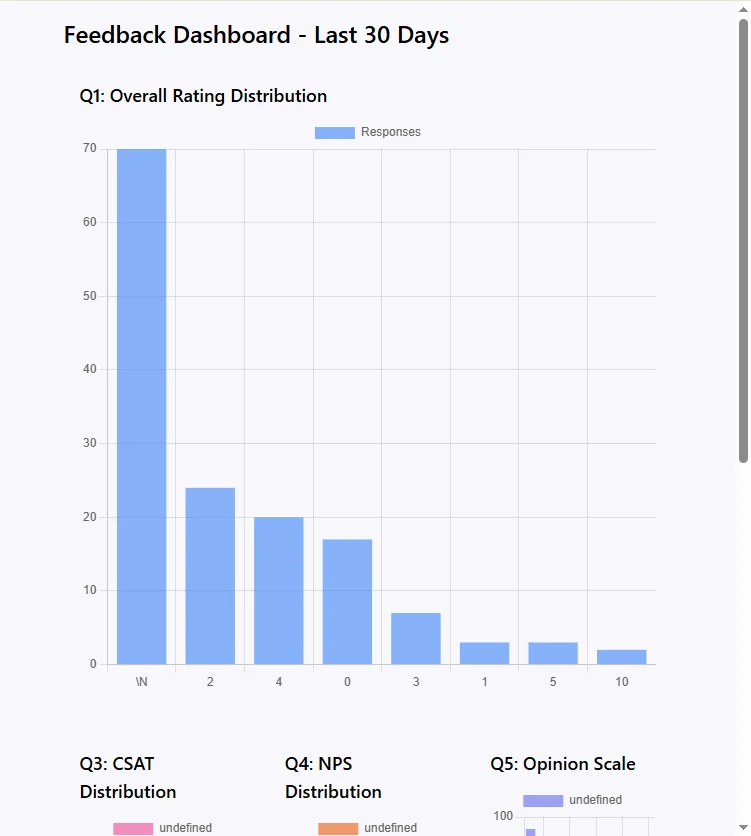
Beautiful, shareable reports. Once you are satisfied with the analysis, you can ask the AI to generate a report in HTML format. The report is self-contained and responsive, so it works on desktop, tablet, and mobile. You can save it as a file, share it with your team, or reuse the visuals for slides by taking screenshots. The HTML is editable, so you can tweak it further in any editor if needed.
No pipelines or setup. External Insights is ideal for ad-hoc analysis, board presentations, quarterly reviews, or quick explorations. There is no need to spin up a data pipeline, configure a warehouse, or wait for scheduled reports. Upload your file, start a conversation with the AI, and get insights in minutes.
How to Use External Insights
Step 1: Open External Insights
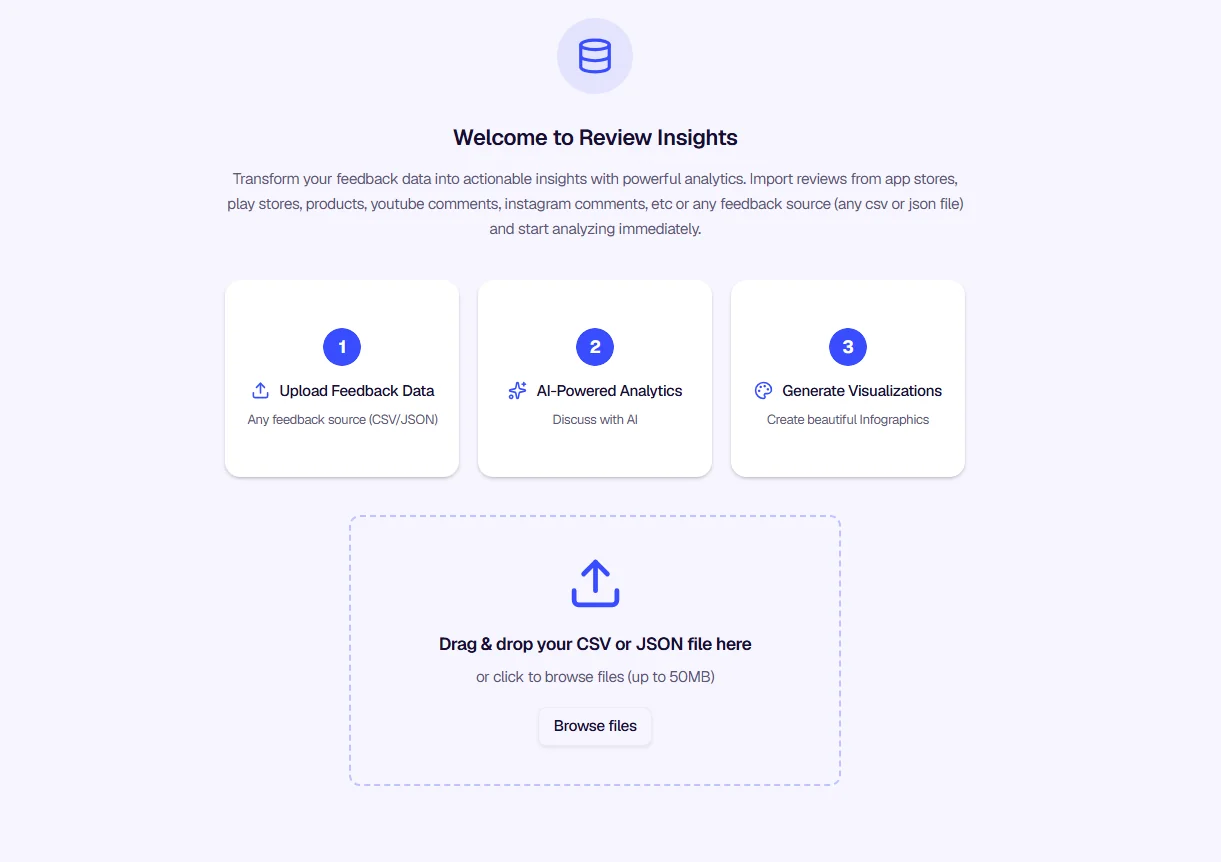
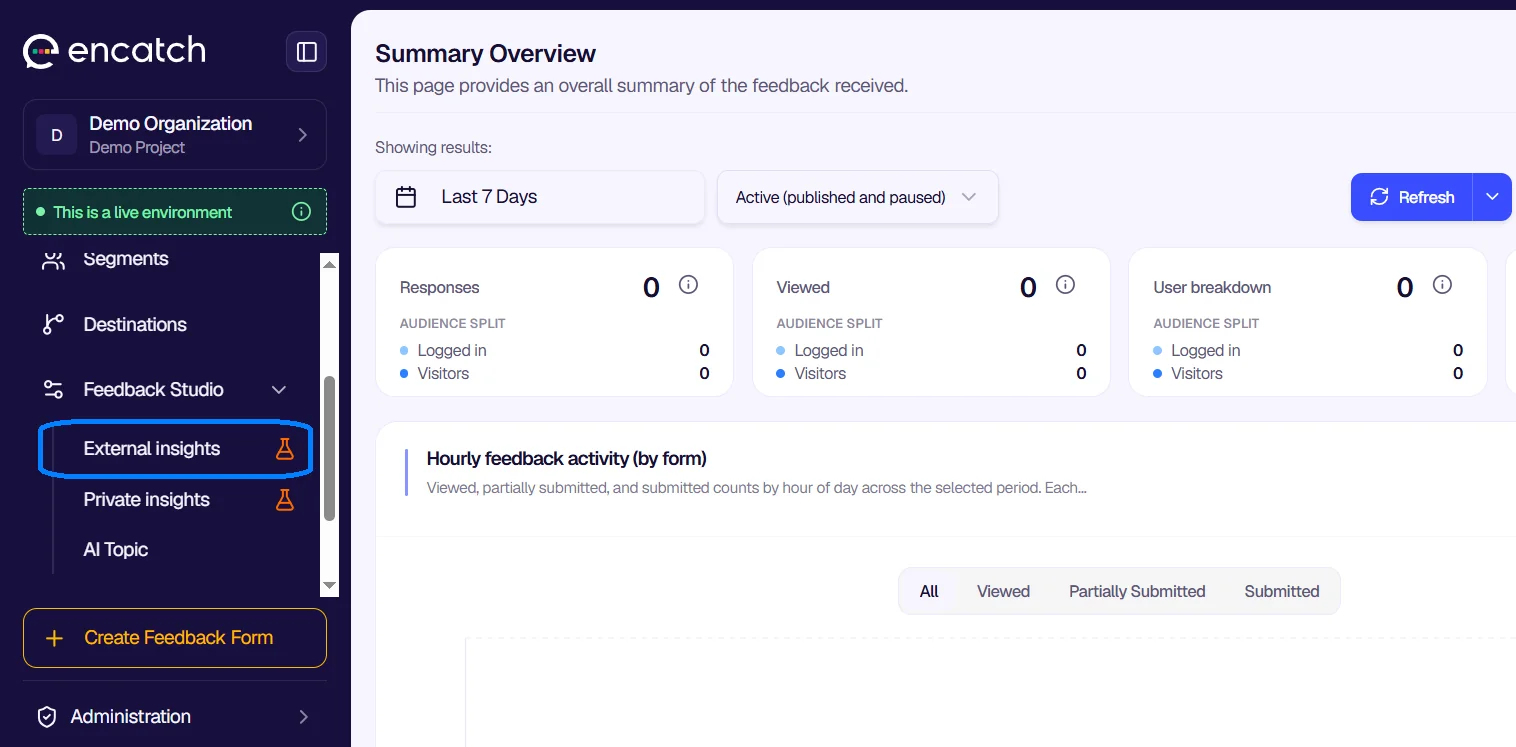
In the encatch admin, go to Feedback Studio in the left navigation. Expand the Feedback Studio section and select External Insights. You will see the welcome screen with the upload area and a brief overview of the three-step workflow: upload your data, analyze it with AI, and generate visualizations.
Step 2: Upload Your Feedback Data
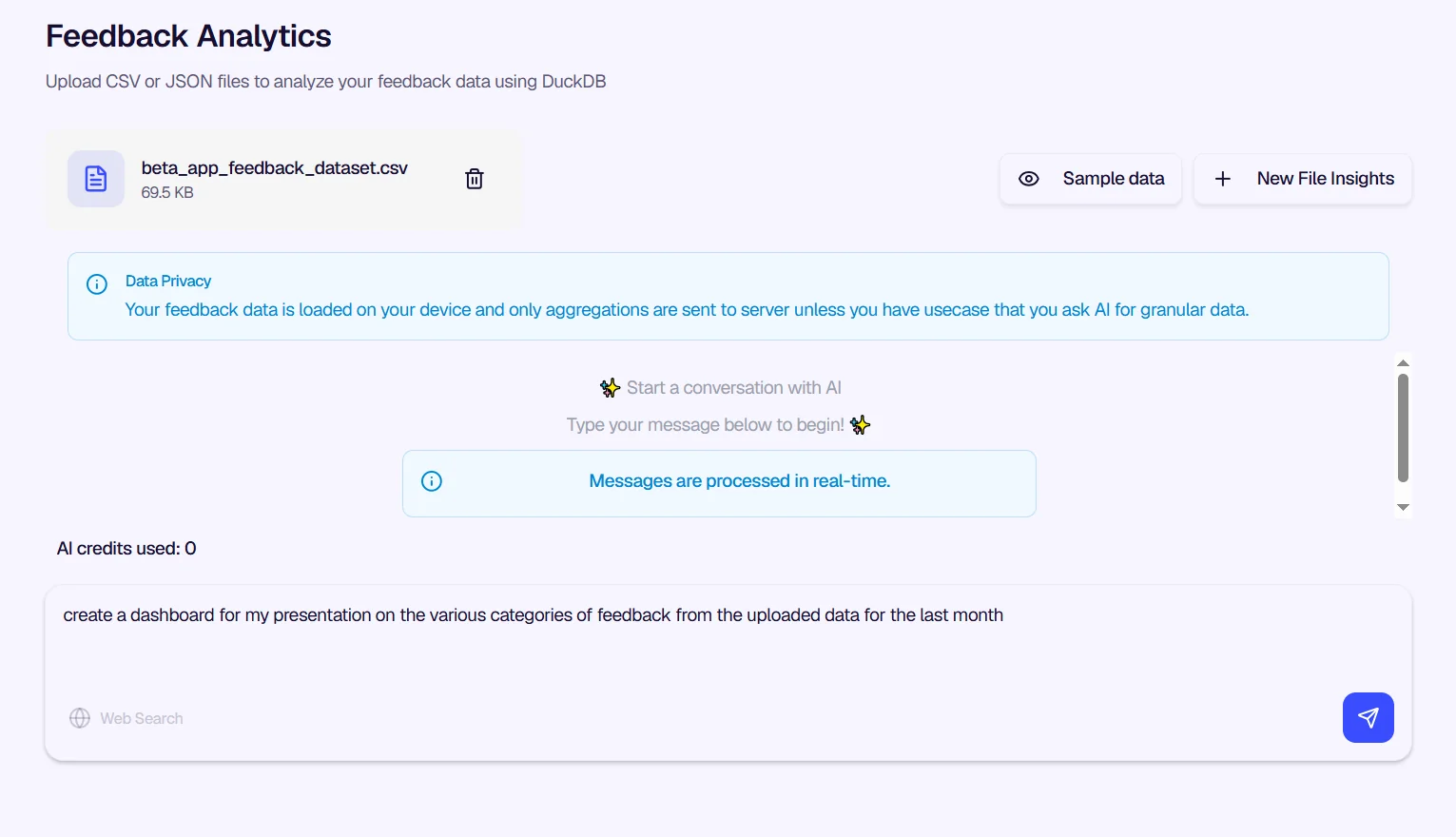
Use the upload area to add your CSV or JSON file. You can drag and drop the file into the dashed box or click Browse files to select it from your computer. Files up to 50 MB are supported. Once uploaded, the file name and size will appear, and you can remove it with the trash icon if you need to switch to a different dataset.
If you want to explore the feature without your own data, use the Sample data button to load example feedback. This is useful for first-time users or demos.
Step 3: Verify the Loaded Data
After uploading, the system loads your data on your device. Take a moment to verify that the sample or preview looks correct. This ensures the columns and structure match what you expect before you start asking questions.
Step 4: Start a Conversation with the AI
In the message input area, type your question or request in plain English. For example, you might ask to create a dashboard for your presentation on the various categories of feedback from the uploaded data for the last month. Messages are processed in real time, so you will see responses and visualizations appear as the AI works.
You can ask for specific types of analysis, such as a bar-plus-line combo showing platform breakdown (feedback count as bars, average rating as line), or any other visualization that helps you understand your data. The AI will aggregate the data, run the appropriate queries, and present the results.
Step 5: Build Your Report
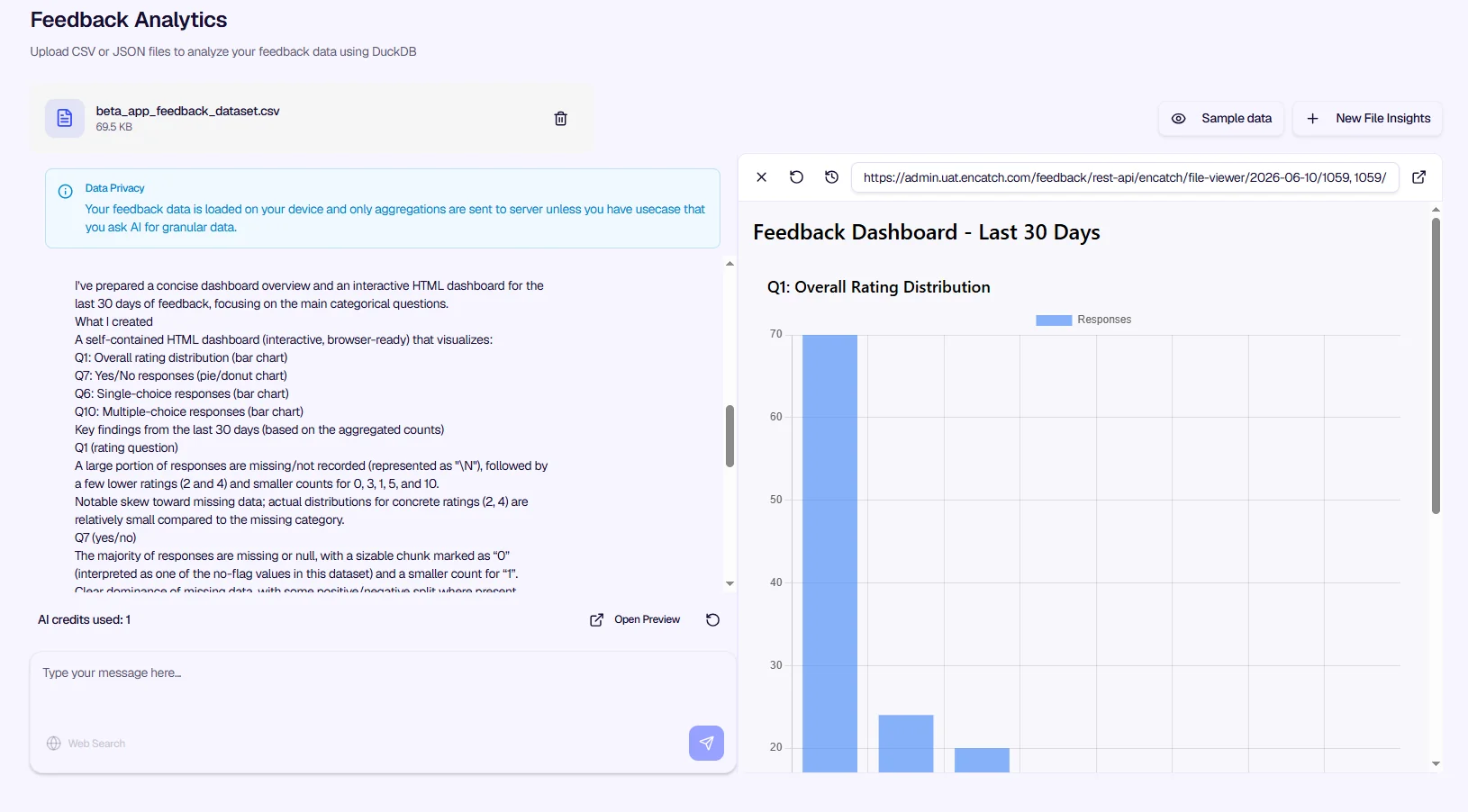
As you ask questions, the AI adds charts and summaries to a live report panel. You can refine your analysis by asking follow-up questions or requesting additional data points. Once you are satisfied, ask the AI to generate the final report in HTML format.
Step 6: Save and Share
The generated report is a standalone HTML file. Open it in any modern browser—it is responsive for desktop, tablet, and mobile. You can save it to your computer, email it to your team, or modify it further in any HTML editor. If you need visuals for slides or documents, take screenshots of the charts, or keep the interactive HTML as a live artifact for deeper exploration.
Example Use Cases
Analyze feedback from social and review platforms. You might have reviews from app stores, play stores, YouTube comments, Instagram comments, Glassdoor, or Twitter. Export that data to CSV or JSON and load it into External Insights to identify themes, sentiment trends, and areas for improvement.
Go beyond standard encatch reports. If the built-in encatch reports do not answer your questions, export your encatch data to CSV and analyze it with External Insights. You can slice the data by custom dimensions, time windows, or categories that are not available in the default dashboards.
Ad-hoc analysis for presentations. When you need quick insights for a board meeting, product review, or stakeholder update, External Insights lets you upload your latest feedback export and generate a tailored dashboard in minutes, without waiting for scheduled reports or setting up new pipelines.
Was this page helpful?